
Before a prescriber can send electronic prescriptions for controlled substances through Amazing Charts, they need to complete EPCS registration, a one-time identity-proofing and credentialing process required by the DEA. Registration involves the prescriber, a hardware token or the Twilio Authy app for two-factor authentication, and a second staff member who grants the final approval. This article walks through the full process from start to finish.
- Time to complete: ~30–45 minutes of active time (may span more than one session)
- Who’s involved: The registering prescriber, plus a second staff member with grant permissions
- Frequency: One time per prescriber
EPCS registration verifies a prescriber’s identity and credentials with Exostar/NewCrop before they’re allowed to e-prescribe controlled substances. It’s a one-time setup process, separate from the annual EPCS subscription renewal. Because DEA rules require a second person to confirm and grant EPCS rights, this process can’t be completed by the registering prescriber alone.
Before you begin- Access to Amazing Charts for the prescriber who is registering
- The prescriber’s legal name exactly as it appears on their driver’s license
- The prescriber’s home address (not their practice address), date of birth, and the last 4 digits of their Social Security number
- A personal mobile phone to install the free Twilio Authy app
- A second staff member with “grant” permissions in Amazing Charts, they’ll need to complete one step partway through
- About 30–45 minutes of active time, spread across a couple of sessions if you’re waiting on a mailed hardware token
- Log into Amazing Charts. Sign in as the provider who will be registering.
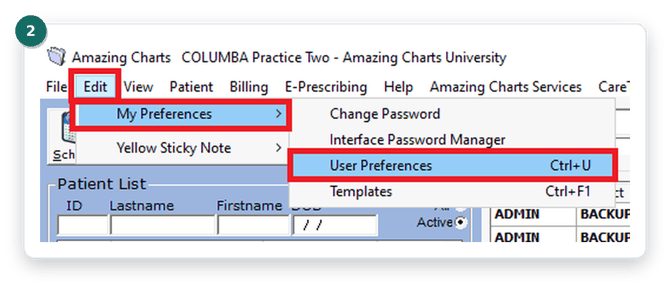
- Click Edit > My Preferences > User Preferences. This opens your personal preferences screen.
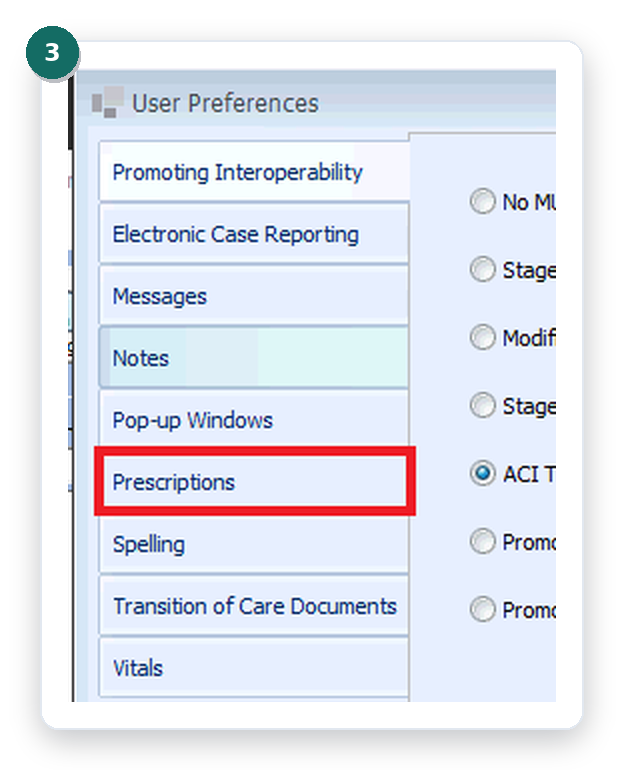
- Select Prescriptions. You’ll find it on the left-hand side of User Preferences.
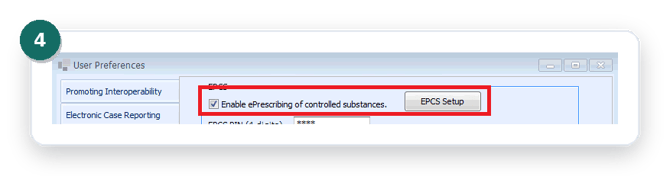
- Enable EPCS and open setup. Check “Enable ePrescribing of controlled substances,” then click EPCS Setup.
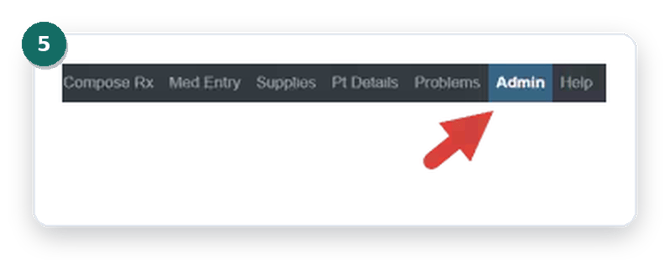
- Click the Admin tab. It’s at the top of the screen.
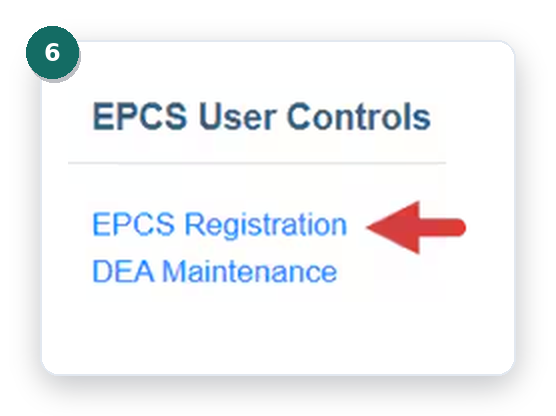
- Click EPCS Registration. You’ll find it under EPCS User Controls.
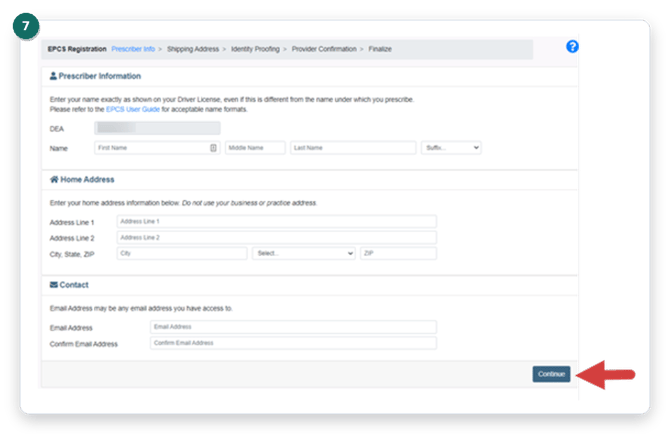
- Enter your prescriber information. Enter your name exactly as it appears on your driver’s license, your home address (not your office address), and your email address, then click Continue.
To avoid registration errors, enter two-word names without a space or hyphen. For example, enter “John Paul” as JohnPaul.
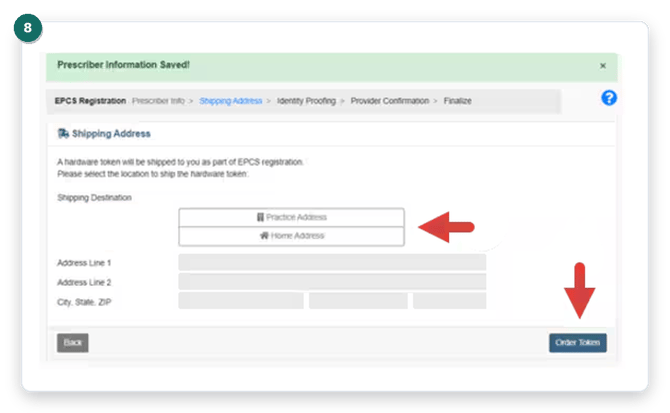
- Choose a shipping destination and order your token. Select your Practice Address or Home Address as the shipping destination for your hardware token, then click Order Token.
Already have an Exostar account? You’ll see a Possible Duplicate Registration alert. Contact Amazing Charts Support to have NewCrop copy your existing credentials to the new account.
- Confirm the order. A message confirms the token order was successful.
- Click Begin. You’ll find this under the Identity Proofing section.
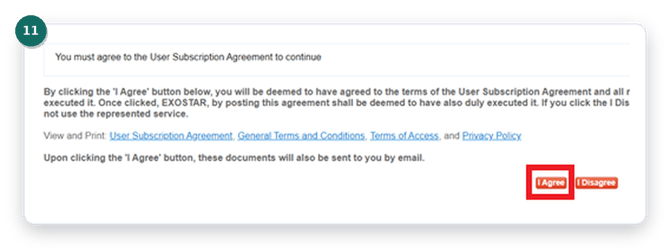
- Click I Agree. This accepts the User Subscription Agreement so you can continue.
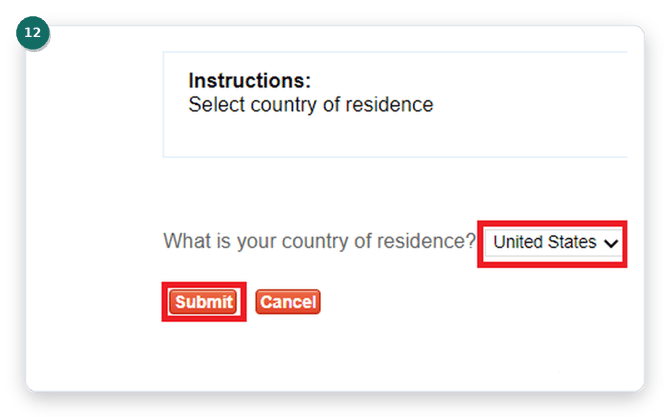
- Select your country of residence. Choose United States (the only option) and click Submit.
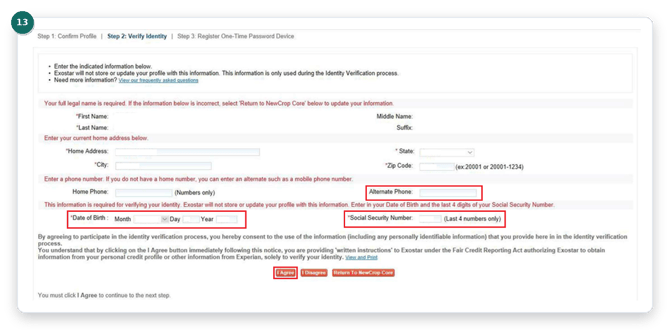
- Enter your identity verification details. Enter an alternate phone number (your personal cell works well), your date of birth, and the last four digits of your Social Security number, then click I Agree.
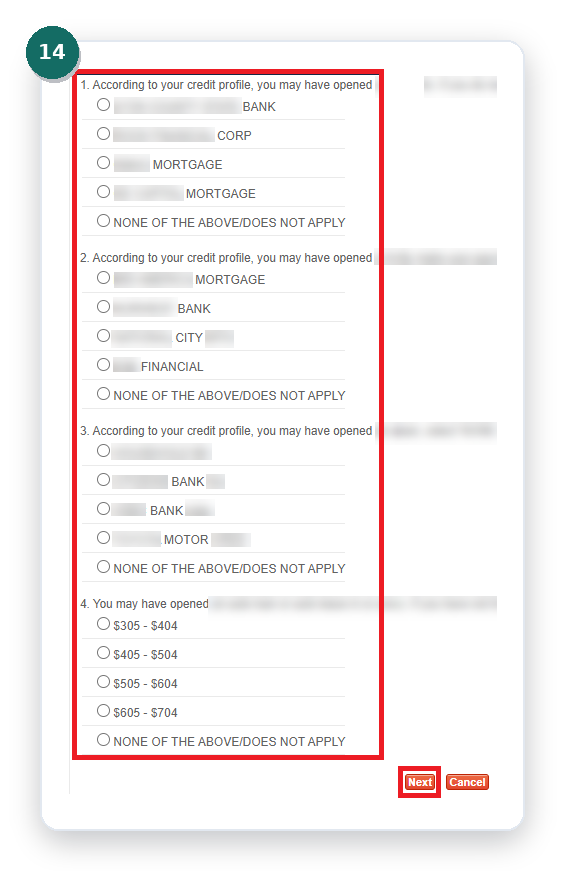
- Complete the Identity Verification Questionnaire. Answer all questions, then click Next.
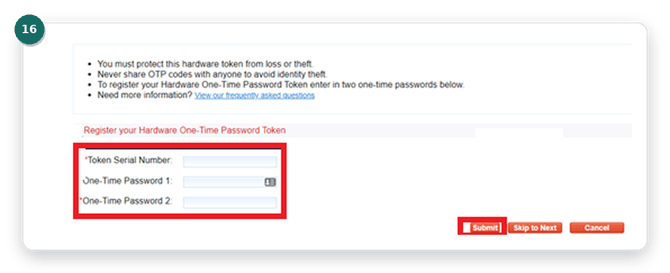
- Register your hardware token, if you have it. If your hardware token has already arrived, enter its serial number and one-time passwords now. If it hasn’t arrived yet, leave these fields blank and click Skip to Next, you can register it later.
- Generate and enter your one-time passwords. Press the button on your hardware token to get a six-digit password. Once the token’s screen goes blank, press it again for a second password, then enter both.
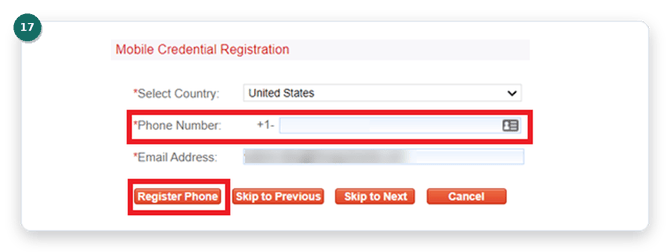
- Register your mobile phone. Enter your mobile phone number and click Register Phone.
- Download and set up the Authy app. You’ll be prompted to download and set up the Twilio Authy app, a free app for two-factor authentication.
This app must be downloaded on your phone, not a computer.
- Open the Authy app. It will say “Let’s Turn This Device Into a Secure Token.”
- Enter your details in the app. Choose United States as your country code, then enter your cell phone number and email address.
- Verify by text message. Choose the SMS option to receive a verification code, and allow notifications when prompted.
- Enter the emailed passcode. You’ll receive a one-time passcode by email. Enter this code in the Authy app.
- Check for your NewCrop token. Once your phone displays “Your NewCrop Token Is: xxxxxx,” you’re ready to bind the app to your Exostar account.
- Bind the app to your account. Use One Touch Approval, or tap the X icon to enter the Soft OTP (the 6-digit code shown in Authy) and click Submit.
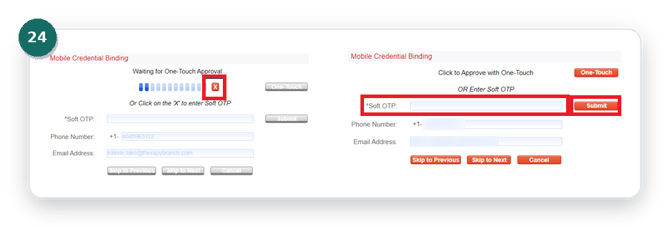
- Click Complete. This finishes the mobile device binding step.
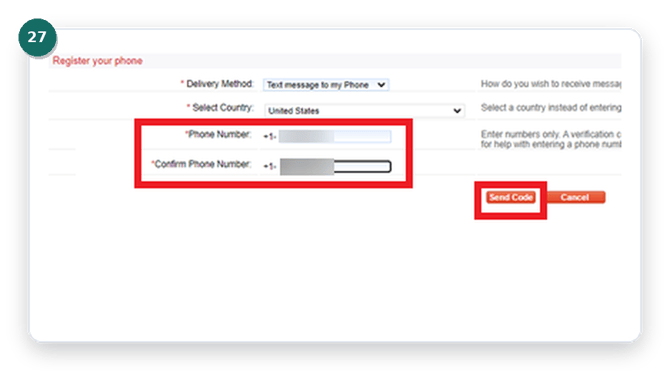
- Enter your phone number. Enter it twice to register it with Exostar.
- Click Send Code. Exostar will text a verification code to the number you entered.
- Enter the verification code. Enter the code you received, then click Submit.
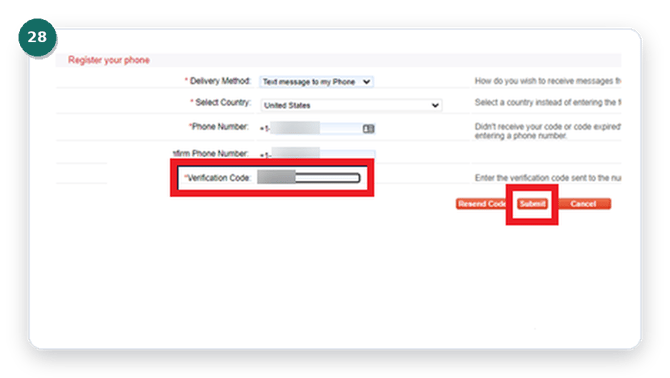
- Confirm and complete. A message confirms your phone was successfully registered. Click Complete to proceed.
- Log out of Amazing Charts. This step is done as the registering prescriber. The next step needs a different staff member.
This part must be completed by a different staff member, one who is not the registering prescriber and who has “grant” permissions in Amazing Charts.
- Log in as a user who can grant EPCS rights. This must be someone other than the registering prescriber.
- Navigate back to the NewCrop pages. Use the same path described at the start of this article (Edit > My Preferences > User Preferences > Prescriptions > EPCS Setup).
- Click Admin. This opens the admin tools.
- Click Grant / Revoke Prescriber. You’ll find this under the EPCS Administration section.
- Grant EPCS rights. Check the box next to the registering provider’s name, then click Grant (located above and to the right of the provider’s name).
- Confirm the grant. A message confirms the prescriber has been granted EPCS rights. They can now finalize their own registration.
This final part is completed by the registering prescriber again.
- Log back in as the registering prescriber. Navigate back to the EPCS setup pages.
- Open EPCS Registration again. Click Admin, then under EPCS User Controls click EPCS Registration.
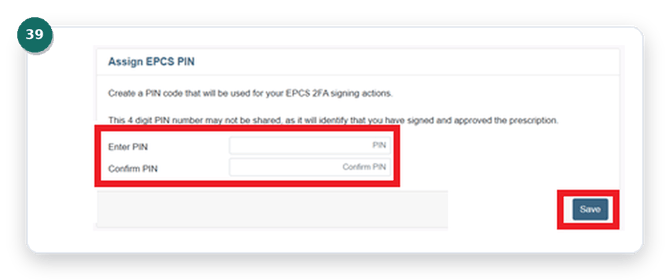
- Create your 4-digit PIN. Enter and confirm a PIN, then click Save.
This PIN won’t be visible as you type it, and it can’t use sequential numbers or repeating digits. Make sure to remember it, you’ll use it to sign every controlled-substance prescription.
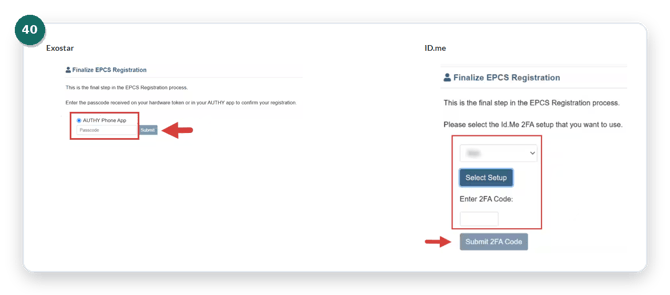
- Complete MFA authentication. Confirm using the Authy app, your Exostar hardware token, or ID.me.
- Confirm registration is complete. A message confirms the prescriber has completed EPCS registration.
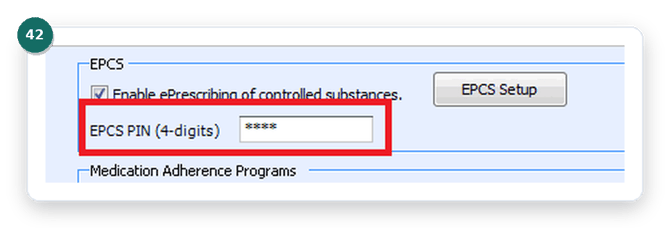
- Enter your EPCS PIN in Amazing Charts. Navigate back to your Amazing Charts user preferences and enter the EPCS PIN you just created.
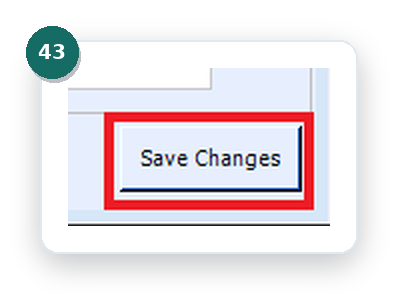
- Click Save Changes. That’s it, EPCS registration is complete and the prescriber can begin e-prescribing controlled substances.
Do I need the hardware token before I can start registering?
No. If you haven’t received it yet, leave the token fields blank during identity proofing and click Skip to Next. You can add the hardware token to your account later once it arrives.
What if I see a “Possible Duplicate Registration” alert?
This means the prescriber already has an Exostar account from another EMR. Contact Amazing Charts Support to have NewCrop copy those existing credentials to the new account.
How do I enter a two-word first name, like “John Paul”?
Enter it without a space or hyphen, for example JohnPaul. This avoids registration errors caused by name-matching mismatches.
Can I finish registration using only the Authy app, without a hardware token?
Yes. When you finalize registration, you can authenticate with the Authy app, a hardware token, or ID.me, whichever you set up.
Why does someone else need to “grant” my EPCS rights?
This is a required identity check: a second, non-registering staff member with grant permissions must confirm and approve the registration before the prescriber can finalize it. It cannot be the same person who is registering.
What is the 4-digit EPCS PIN used for?
Once registration is complete, the prescriber enters this PIN to sign and approve each controlled-substance e-prescription. It can’t use sequential or repeating digits, and it won’t be visible on screen when typed, so make sure the prescriber remembers it.
Still need help?If you run into any trouble during EPCS registration, reach out to Amazing Charts Support at 866-382-5932 option 1 or support@amazingcharts.com.