
This article covers an error that can appear during Citrix startup for some clients. It usually shows as a dialog box stating “This version of Citrix Workspace does not support Selected Encryption,” though it can also appear inside a Citrix window instead of a pop-up.
|
Time to resolve 5–10 minutes |
Cause Leftover registry key |
Affects Citrix Workspace App |
Symptoms
- A dialog box appears stating “This version of Citrix Workspace does not support Selected Encryption. Please contact your administrator.”
- Or, the same message shows inside a Citrix window rather than as a pop-up dialog, typically in the bottom right.
- On Citrix Workspace App 2507 and newer, this error can be silent: no dialog box appears at all, and Amazing Charts simply never finishes opening.
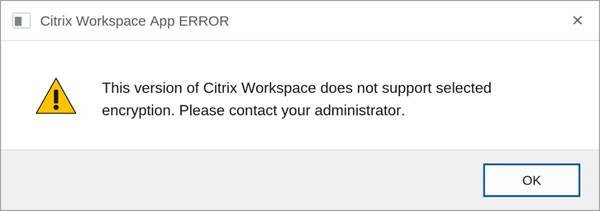
The “Citrix Workspace App ERROR” dialog.
|
Note: If you're on Citrix 2507 or newer and Amazing Charts hangs on “Opening Amazing Charts” with no error message, don't rule this out. Check for the registry key below. If it's present, treat it as the cause even though no dialog appeared. |

Amazing Charts stuck on “Opening Amazing Charts” with no error dialog, on Citrix 2507+.
Before You Begin
✓ Access to the Windows Registry Editor on the affected computer
✓ 5 to 10 minutes, more if the error is silent and you need to confirm the cause first
Step 1: Open Registry Editor
Type Registry Editor into the Windows search bar and open it.
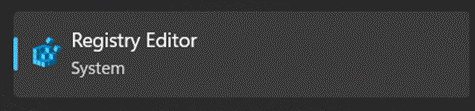
Registry Editor in the Windows search results.
Step 2: Navigate to the Citrix key
Copy the path below, then paste it into the registry address bar at the top of Registry Editor and press Enter.
|
HKCU\Software\Classes\VirtualStore\MACHINE\SOFTWARE\WOW6432Node\Citrix |
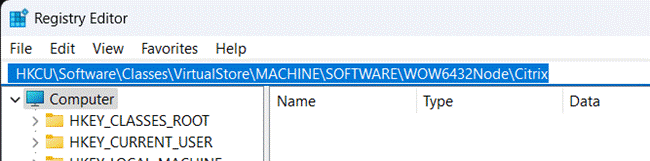
The path pasted into the Registry Editor address bar.
Step 3: Removing the Citrix Registry key.
Right-click the Citrix key shown highlighted below and delete it, this was retrieved from the prior path we copied.
|
Important: Only delete the highlighted Citrix key. Deleting it will also remove the “ICA Client” key nested underneath it. That's expected and fine. |
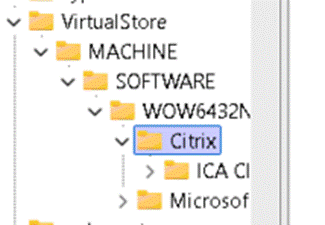
The Citrix key, with ICA Client nested beneath it.
Step 4: Try opening Amazing Charts again
Once the key is removed; Close Registry Editor, go to the Citrix website, and log into Amazing Charts again.
Step 5: Reset site cookies if it still won't load
If Amazing Charts still doesn't open, reset the site cookies for the VAC Citrix website. You can do this from the icon on the left side of the browser's address bar.
Still Need Help?
If you run into any issues after following the steps above and aren't sure how to proceed, contact a senior technician or open a ticket with the support queue.
- Phone: 866-382-5932, option 2
- Email: techsupport@amazingcharts.com
- Chat: amazingcharts.com/support