
This article covers how to resolve the “Invalid child element ' ' in namespace” error, which can prevent a provider from transmitting an electronic prescription. The error message states either PreferredPharmacies or PatientDiagnosis, and the fix depends on which one you see.
|
Time to resolve ~5 minutes |
Error variants 2 |
Typical scope 1 or a few patients, not all. |
- A provider clicks to transmit a prescription and is met with a “Transaction Failed” error instead of the prescription sending.
- The error usually affects only one or a small handful of patients. It's uncommon for a practice to have 5 or more preferred pharmacies on file, or a diagnosis with a missing ICD code, for many patients at once.
- If every patient in the practice is affected, this is likely a different issue, not the one covered in this article.
Open the error message and look at the word between the highlighted quotation marks, shown below. That word tells you which of the two fixes below applies.
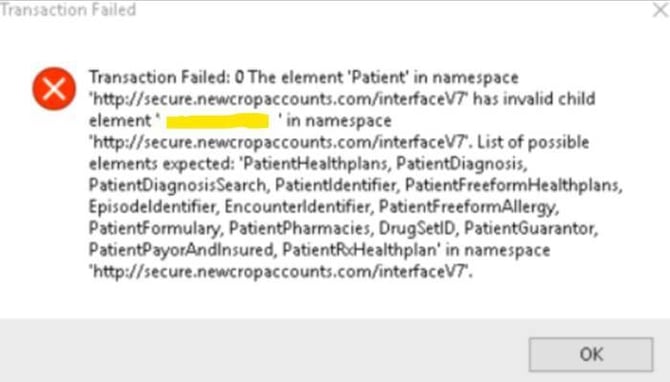
The Transaction Failed error, with the variable element highlighted in yellow.
|
If the highlighted word is... |
What it means |
|
'PatientPharmacies' |
The practice has more than 5 preferred pharmacies on file for this patient. Amazing Charts allows a maximum of 5 for prescribing. |
|
'PatientDiagnosis' |
A diagnosis on the patient's Summary Sheet has a blank ICD code in the ICD field. |
✓ Access to the patient's chart in Amazing Charts
✓ The provider available, or their permission, since removing a diagnosis or editing pharmacy preferences involves patient data
✓ About 5 minutes
Part 1 · Resolve a 'PatientDiagnosis' Error (Invalid ICD Code) Step 1: Open the Summary SheetOpen the patient's chart and go to the Summary Sheet tab at the top of the chart. In the Problems list, look for a problem with nothing entered in the ICD column.
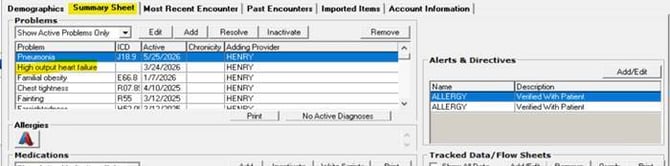
The Problems list on the Summary Sheet. “High output heart failure” has no ICD code.
Step 2: Remove the problem with the providerHave the provider click the problem in the list, then click Remove at the top of the Problems box.
|
Important: This is patient data. Don't remove a diagnosis yourself without the provider's permission if they aren't sure how. If they'd like your help, confirm with them first, then proceed on their behalf. |
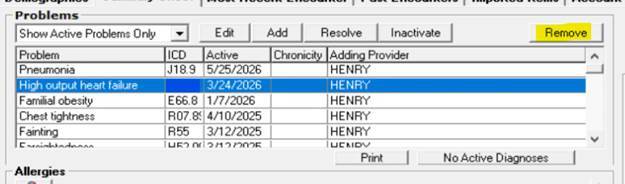
Remove, at the top right of the Problems box.
Step 3: Check for any other blank ICD codesRepeat Step 2 for any other problem with a blank ICD code. If you don't see one in the default view, change the dropdown at the top of the Problems box from Show Active Problems Only to Show All Problems.
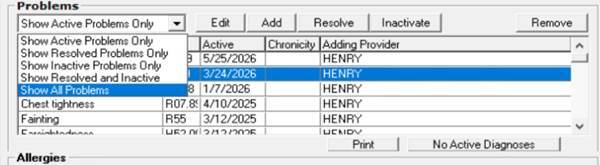
The Problems dropdown, set to Show All Problems.
Step 4: Save and re-send the prescriptionOnce every problem with a blank ICD code has been removed, have the provider save and sign off the chart. This resolves the error. The provider can now try sending the medication again.
Part 2 · Resolve a 'PreferredPharmacies' Error (Too Many Pharmacies) Step 1: Open the Demographics tab
Open the patient's Demographics tab at the top of Amazing Charts.
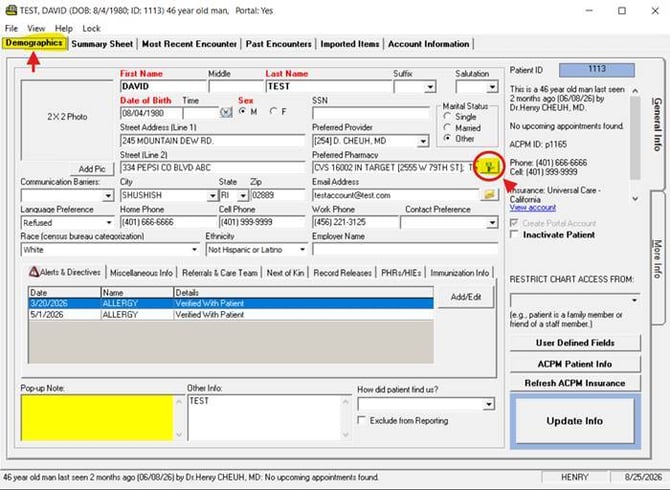
The Demographics tab, with the Preferred Pharmacy lookup icon circled.
Step 2: Open the pharmacy lookupUnder Preferred Pharmacy, click the dropper/location pin icon next to the pharmacy field, circled in the screenshot above.
Step 3: Uncheck pharmacies down to 5 or fewerIn the Pharmacy Lookup window, have the provider uncheck any preferred pharmacies that are no longer needed. The patient can have at most 5. Uncheck any beyond that, then click OK.
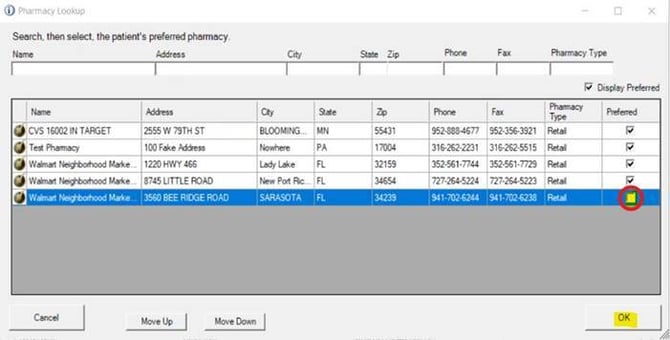
The Pharmacy Lookup window, with preferred pharmacies checked.
Step 4: Click Update InfoAfter unchecking pharmacies and clicking OK, the provider must click Update Info at the bottom right of the Demographics screen to save the change.
|
Important: This step is easy to miss and is required. If Update Info isn't clicked, the pharmacy list will not actually save, and the error will recur. |
Update Info, at the bottom right of the Demographics screen.
Still Need Help?If you run into any issues after following the steps above and aren't sure how to proceed, contact a senior technician or open a ticket with the support queue.
- Phone: 866-382-5932, option 2
- Email: techsupport@amazingcharts.com
- Chat: amazingcharts.com/support