
Runtime Error 8053 appears when Amazing Charts can't fully load, most often because the server's drive has run out of space. When it happens, the program shows the error on top of the loading screen and then quits, leaving the practice unable to open the software. This guide walks through the three escalating fixes support uses to resolve it, from clearing disk space to resetting the server path.
Time to resolve ~10-15 minutes
Common cause Server disk full
Escalation path 3 solutions
What's Happening
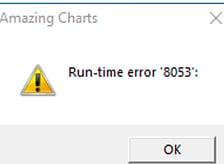
When the server's drive runs out of space, Amazing Charts can't finish loading. The prescriber or staff member opening the program on the server or any workstation sees the AC loading screen appear, and in front of it a dialog reading Run-time error '8053':. Once that dialog is closed, the program quits and the practice is locked out until the underlying disk-space issue is resolved.
Before You Begin
- Remote access to the practice's server (GoToAssist or similar)
- Administrator access to the server's file system
- Knowledge of the client's Amazing Charts Backup folder location
- About 10-15 minutes
Part 1 · Clean Up Disk Space (Full Drive)
-
Verify the server's disk space
Remote into the server and check the free space on the main drive. A full or nearly-full drive is the most common cause of Runtime Error 8053.
Note and considerations:
Only ever delete files owned by Amazing Charts. Never delete a customer's own files — if a client asks you to delete a file the practice owns, let them know you can't and have them delete it themselves. -
Locate the Amazing Charts Backup folder
The default location isC:\Program Files (x86)\Amazing Charts\Backup\. In File Explorer, sort the folder by Date Modified so the newest backups appear at the top. -
Delete older backups to free up space
Highlight and delete backups by the client's requested begin/end date, or ask if they're comfortable keeping backups only back to the start of the prior month. Do not delete the Backup folder itself — only individual backups inside it, and keep at least one week to one month of backups on hand for redundancy. -
If remote access won't connect, try an alternate route
GoToAssist sometimes won't install on a completely full drive. If you can't remote into the server, ask the client to clear their Recycling Bin first. If that's not possible, remote into a workstation instead and reach the backup folder over the network share (for example,\\SERVER\Backup\). You can do the same steps as 2. and 3. over the network.
Part 2 · Reboot the Server
-
Confirm no drives are full
If Runtime Error 8053 persists after Part 1, and disk space is no longer the issue, a reboot may clear it. Consider a reboot only once you've confirmed no drives on the server are full. -
Reboot the main server computer
Restart the practice's main server. Wait until the reboot is fully complete and all Windows services have started back up before moving on. -
Try starting Amazing Charts again
Once services are back up, open Amazing Charts. If the error is gone, the issue is resolved. If it persists, move on to Part 3.
Part 3 · Reset Paths in Amazing Utilities
-
Open Amazing Utilities as administrator
If clearing space and rebooting didn't resolve the error, find Amazing Utilities in the Amazing Charts install folder and run it as administrator. -
Click Reset Paths
At the bottom of the Amazing Utilities window, click Reset Paths, then click OK to confirm. Close Amazing Utilities when finished. -
Start Amazing Charts and set the path to the main computer
Open Amazing Charts again. It will prompt you to set the path to the main computer — click OK. -
Confirm this is the main computer
In the pathing screen, click This is the main computer and confirm. Amazing Charts should now open normally.
Still seeing Runtime Error 8053 after all three solutions? Here's how to proceed: escalate the case to a team member or senior technician, or have the client reach Amazing Charts Support directly through one of the channels below.
Phone: 866-382-5932, option 2
Email: techsupport@amazingcharts.com
Chat: amazingcharts.com/support