
Time to resolve: ~5 minutes
Common cause: Problem with blank ICD
Symptoms: Chart won't save or sign off, results in error.
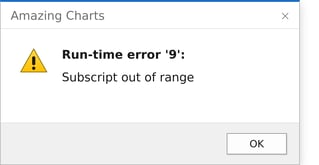
Runtime Error '9': Subscript out of Range happens when a chart's Problems list contains an entry with no ICD code attached. When a provider tries to save or sign off a chart that has one of these blank entries, Amazing Charts throws the error instead of saving. This guide walks through finding the problem entry, removing it with the provider's permission, and resolving the error.
What's Happening
A chart with a problem list entry that's missing its ICD code will throw Runtime Error '9': Subscript out of Range when a provider tries to save or sign off.
Watch for these symptoms:
- ✓ Providers can't save one, or a few charts — but not all of them
- ✓ Every affected chart has an issue somewhere on its Summary Sheet
- ✓ Trying to save or sign off the chart doesn't work, and typically returns Runtime Error '9': Subscript out of Range
Before You Begin
- ✓ Access to the patient's chart in Amazing Charts
- ✓ The provider's permission before removing any problem list entry — it's patient data
- ✓ Familiarity with the chart's Summary Sheet tab
- ✓ About 5 minutes
Resolution Steps
-
Open the chart and go to the Summary Sheet
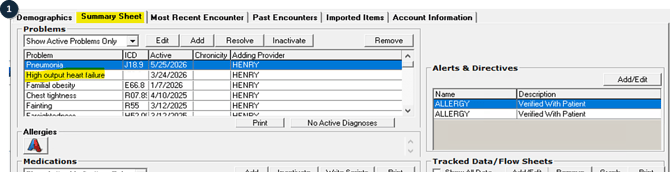
Open the patient's chart, then navigate to the Summary Sheet tab at the top of their chart. In the Problems list, look for an entry with nothing in the ICD column — in the example below, High output heart failure has a blank ICD.
-
Have the provider remove the problem
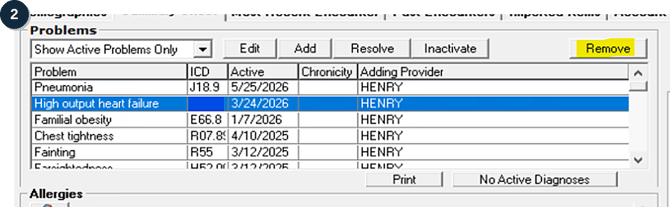
Have the provider click the problem in the list, then click Remove at the top of the Problems box.
Note and considerations:
Do not remove problem list entries yourself without permission if the provider doesn't know how — it's patient data. Ask whether they'd like you to remove it for them if they need help.
-
Repeat for any other blank ICD codes
Repeat these steps for any other problem with a blank ICD code. If you can't find one under the default view, click the Show Active Problems dropdown and change it to Show All Problems so resolved and inactive entries show up too.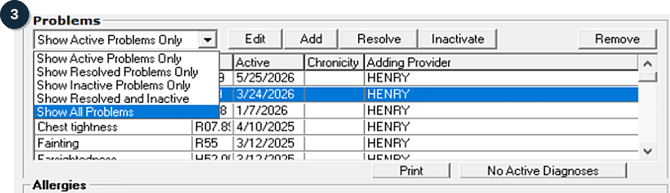
-
Save and sign off the chart
Once every problem with a blank ICD code has been removed, have the provider try to save and sign off the chart again. This should resolve the runtime error they were seeing.
If you have any issues after the steps above and don't know how to proceed, escalate to a senior technician or open a ticket with the support queue.
Phone: 866-382-5932, option 2
Email: techsupport@amazingcharts.com
Chat: amazingcharts.com/support