
Time to resolve: ~5 minutes
Known causes: 2 (login / startup)
Appears at: Login or startup
What's Happening
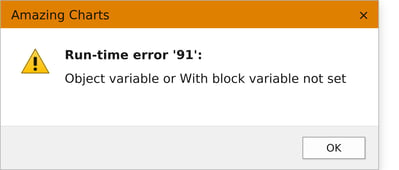
Amazing Charts shows this dialog when it expects an object to exist and it doesn't. The two situations we see most often:
- ✓At login — a Password Security Criteria box appears after the attempt, then closes once you click OK, immediately followed by Runtime Error '91'
- ✓At startup — the error appears as Amazing Charts is launching, before the user ever reaches a login screen
Before You Begin
- ✓ Access to the affected workstation
- ✓ The client's permission before disabling any Windows security feature
- ✓ About 5 minutes
Scenario A · Error Appears at Login
A Password Security Criteria box shows up after the login attempt, then closes once you hit OK — immediately followed by Runtime Error '91'. This is caused by a space character in the username field.
-
Check the username field
Look at the username the user typed or that was auto-filled. This error is caused by a space character (" ") somewhere in the username field. -
Remove the space
Click into the username field and backspace out the extra space character. -
Have them log in again
With the space removed, have the user attempt to log in again. This should resolve the error.
Scenario B · Error Appears at Startup
If the error appears while Amazing Charts is starting up — before the user reaches a login screen — this is most commonly caused by Windows 11's Smart App Control feature.
-
Open Smart App Control
Open the Windows search bar on the taskbar, then search for and open Smart App Control. If it doesn't show up there, open Settings instead and search for "Smart App Control" at the top of the settings window. -
Disable Smart App Control with the client's permission
With the client's permission, disable Smart App Control.
Note and considerations:
Be sure to clarify with the client that once Smart App Control is turned off, it cannot be turned back on without reinstalling Windows. It is not, however, the main security feature of Windows 11 — Windows Defender and other protections remain active. -
Restart Amazing Charts
Once Smart App Control is disabled, start Amazing Charts again. This should resolve the runtime error.
Phone: 866-382-5932, option 2
Email: techsupport@amazingcharts.com
Chat: amazingcharts.com/support