Internal support guide
Use this guide when a client reports that documents aren't transferring between Amazing Charts and Updox. Restarting the Updox Central and Amazing Charts services on the client's VAC session resolves most cases.
Requires: L2-level access to open Services on the client's VAC session.
Steps
- Log into VAC.
- Start the client session. Find the correct practice ID, expand it, right-click, and select Start Client Session.
- Open Services as L2.
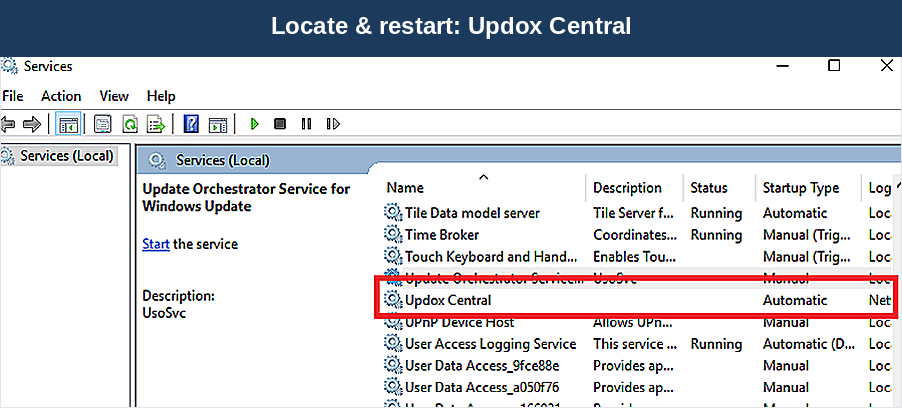
- Restart Updox Central. In the Services list, locate Updox Central, right-click it, and select Restart. If Restart is greyed out, click Start instead.
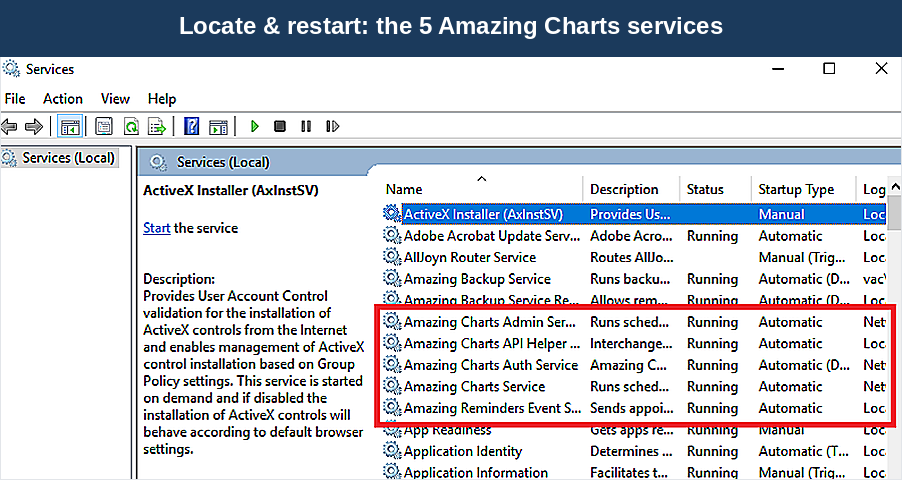
- Restart the Amazing Charts services. Select all five of the following, right-click, and choose Restart: Amazing Charts Admin, Amazing Charts API Helper, Amazing Charts Auth Service, Amazing Charts Service, and Amazing Reminders.
- Confirm the fix. Ask the client to test the connection by sending a document from Amazing Charts to Updox, and from Updox to Amazing Charts.
Still not resolved? Escalate to a higher-tier technician.
English