
Chrome
- Open Google Chrome and navigate to URL: https://citrix.virtualac.amazingcharts.cloud.
- Click the more options icon (three dots) in the far-right corner.
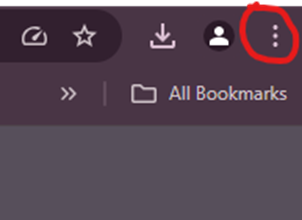
- Click on Cast, Save, and Share or Save and Share (depends on version of Chrome).
- Click create shortcut.
- Assign a name to the shortcut and click Create.
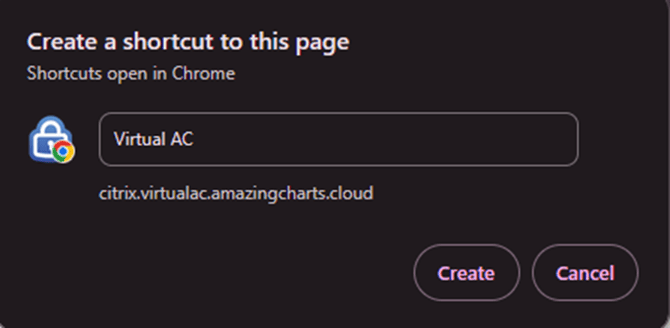
- You should now see a desktop shortcut to access the Citrix portal.
Mozilla Firefox
- Open Mozilla Firefox and navigate to URL: https://citrix.virtualac.amazingcharts.cloud
- Re-size window so it is not full screen, and you can see your desktop.
- Click on the padlock icon and drag the mouse to your desktop.

- You should now see a desktop shortcut for the Citrix portal site (Please note, the shortcut will open the portal in the default web browser set on the computer you are using).
Microsoft Edge
- Open Microsoft Edge and navigate to URL: https://citrix.virtualac.amazingcharts.cloud.
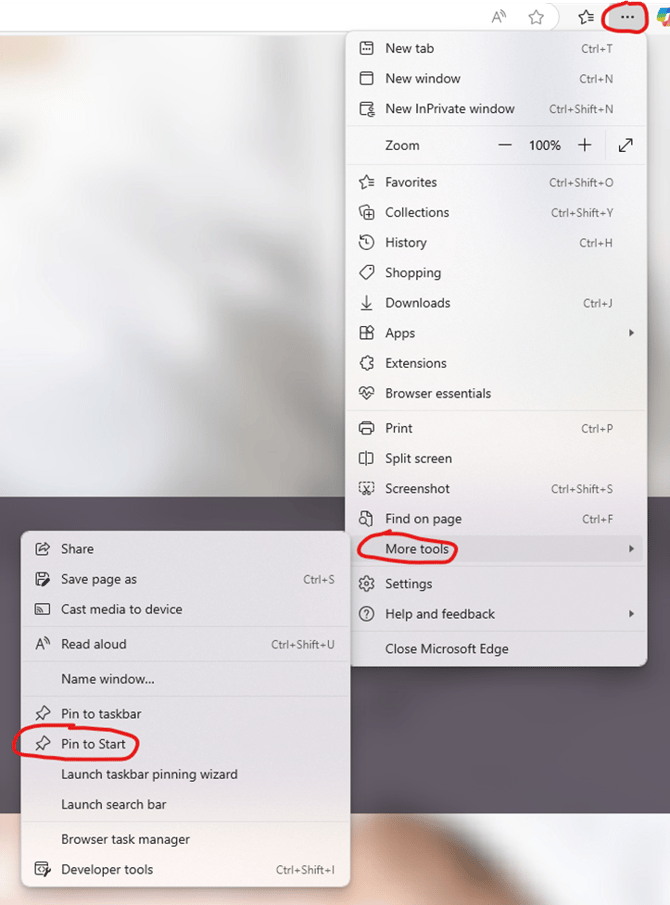
- Click on settings and more in the top right corner (three dots icon).
- Click more tools, then click Pin to Start.
- Navigate to task bar on the bottom of the screen and press start (Windows icon).
- Click all option to view all applications and files pinned to start.
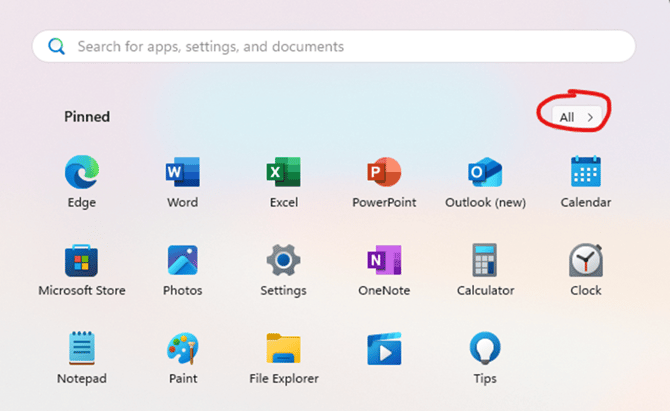
- Look for “Virtual AC”
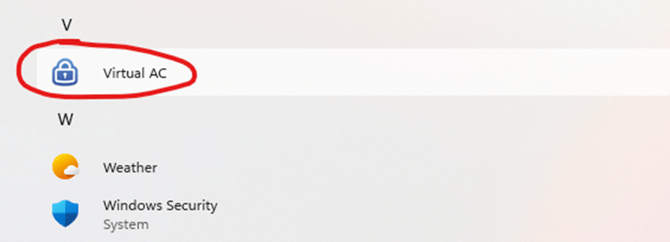
- Click and drag the Virtual AC to your Desktop.
- You should now see a desktop shortcut to access the Citrix portal.