
If documents are failing to transfer between Amazing Charts and Updox — in either direction — the connection between the two systems has usually stalled. Restarting the Updox and Amazing Charts services on your server re-establishes the connection and clears any stuck items. Follow the steps below to resolve the issue.
Before you begin
These steps are performed on the server where Amazing Charts is installed and require administrator access. If you are unsure whether you have server access, please check with your IT administrator before proceeding.
Step-by-step instructions- Log into your server. (Sign in to the server where Amazing Charts is installed.)
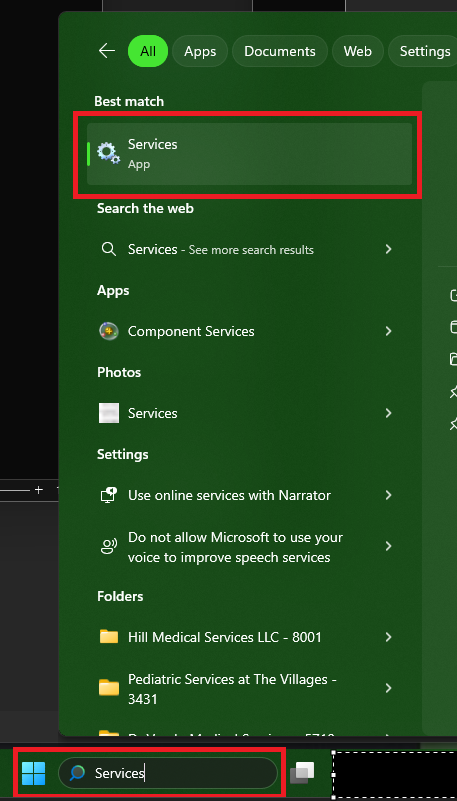
- Open the Services app. (Click the Windows Start button, type Services, and select the Services app from the results.)
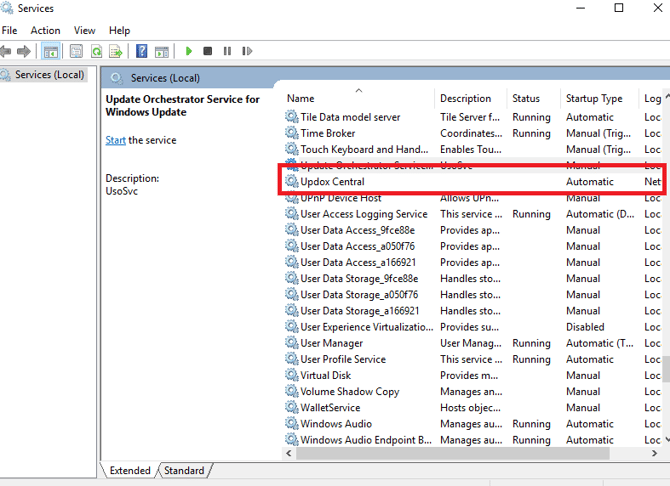
- Restart the Updox Central service. (In the Services window, scroll down to locate Updox Central. Right-click it and select Restart.)
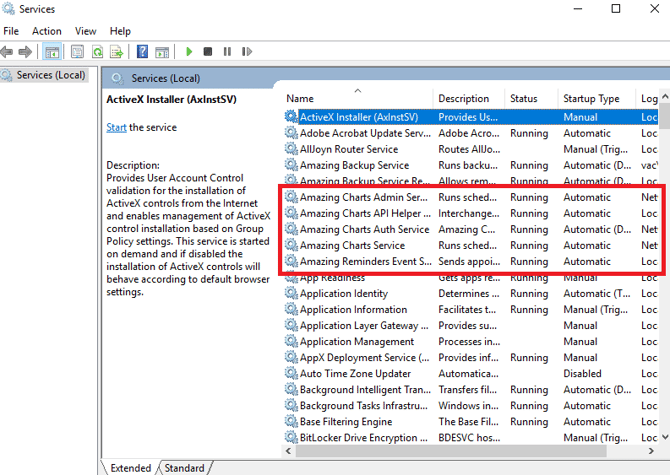
- Restart the five Amazing Charts services. Scroll to the Amazing Charts services and restart all five. Right-click each one and select Restart:
- Amazing Charts Admin Service
- Amazing Charts API Helper
- Amazing Charts Auth Service
- Amazing Charts Service
- Amazing Reminders
- Test the connection. (Send a test document from Amazing Charts to Updox, and from Updox to Amazing Charts, to confirm that files are now crossing successfully in both directions.)
If Restart is greyed out
A greyed-out Restart option means the service is currently stopped. In that case, right-click the service and select Start instead.
Still need help?If you are still seeing issues after completing these steps, please contact our support team:
- Phone: 866-382-5932, option 1
- Email: support@amazingcharts.com