
How to Access the Support Portal:
-
Follow this link to access the Support Portal.
- An account will need to be created in order to access the support team.
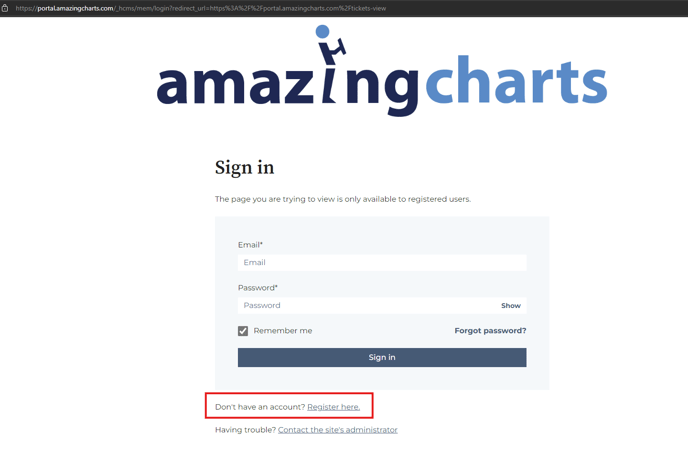
- You will be prompted to enter your email and create a password. From there you should receive an email to verify your email address. After verifying, you will be able to log into the portal to access support services.
Different ways to connect with Support:
- Chat with Support - Available Monday - Friday 8 AM EST - 8 PM EST
- In the bottom right corner of the portal, there is an orange button, that will pop open the chat functionality.

- Once opened you will be prompted to enter your ACID, this is a unique identifier for your clinic. View this article to help you find your ACID.

- You will then enter your reason for contacting support, and from there you will be routed to one of our Live Chat Agents. If all of our agents are busy, a ticket will be created, and someone from our team will reach back out in the order your chat was received.
- In the bottom right corner of the portal, there is an orange button, that will pop open the chat functionality.
- Create a Support Ticket
- In the top menu of the portal select the "Create a Ticket" option.

- This will open a form that is directly routed to our Support Teams ticket queue. Fill out the information asked, and click "submit"

- In the top menu of the portal select the "Create a Ticket" option.
- Give us a call
- Please call 866-382-5932 and select option 1 to be routed to Support. *Please Note that we operate on a call back system, and will return your call in the order that it was received*
View Your Tickets
- When you log in to the portal, you will be able to view any of the tickets that you have opened, as well as any of the tickets created by other individuals at your practice.
- You will see the ticket listed, when it was created, the latest activity and the status of the ticket.
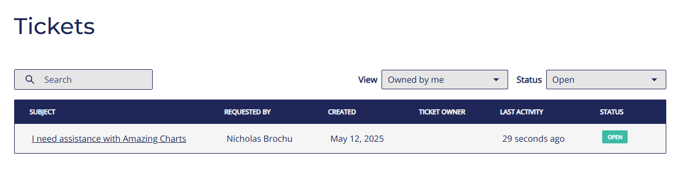
- If you click on the ticket listed under "subject", a page will load with information specific to that ticket. From there you can leave any comments or submit any files that would help us work the ticket more efficiently. (Please remember to not share anything with PHI).
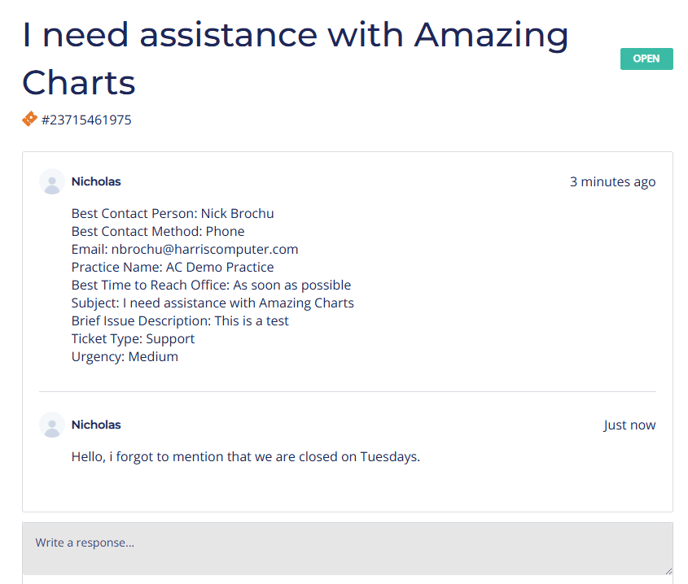
- You will see the ticket listed, when it was created, the latest activity and the status of the ticket.