
Before you start: You'll need administrator access on the workstation to complete Part 1. If you're not sure whether your account has admin rights, check with your IT team before continuing.
Part 1: Grant certificate permissions in Windows
- Open the Microsoft Management Console (MMC). Click the Windows search box and type
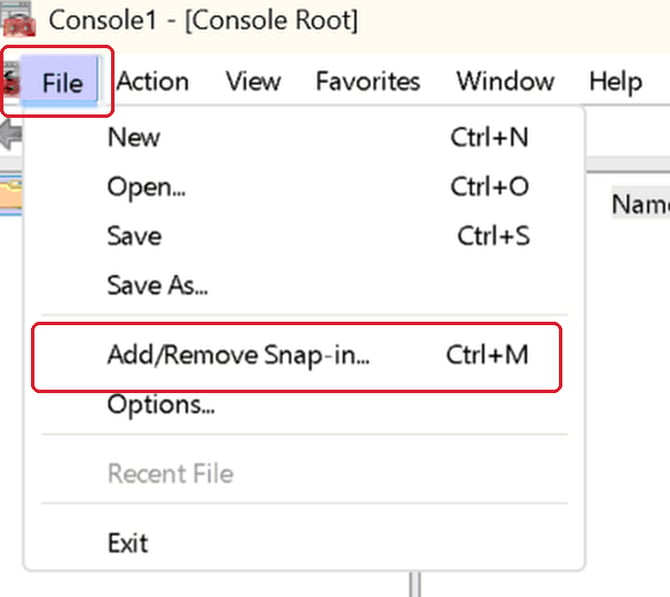
MMC, then press Enter. - Add the Certificates snap-in. In MMC, go to File > Add/Remove Snap-in.
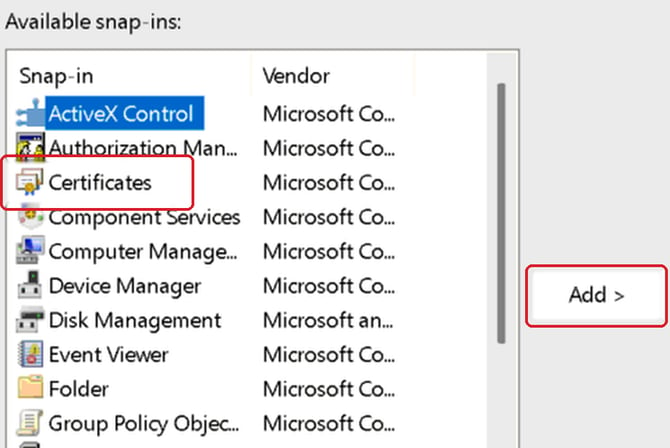
- Select Certificates. Choose Certificates from the list and click Add.
- Choose the account type. Select Computer account and click Next.
- Click Finish.
- Click OK to close the snap-in window.
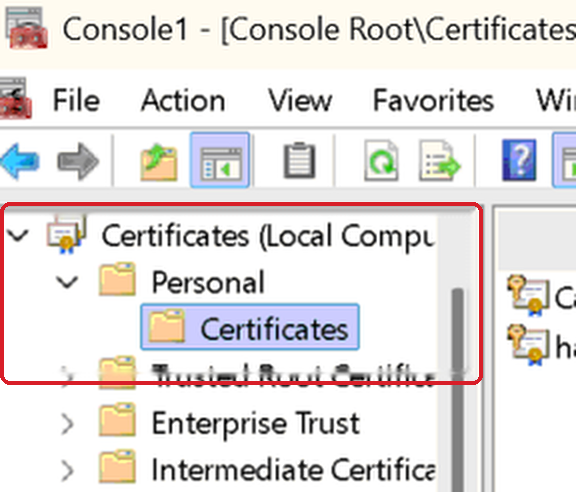
- Find your certificate. In the left panel, expand Certificates > Personal.
- Click Certificates.
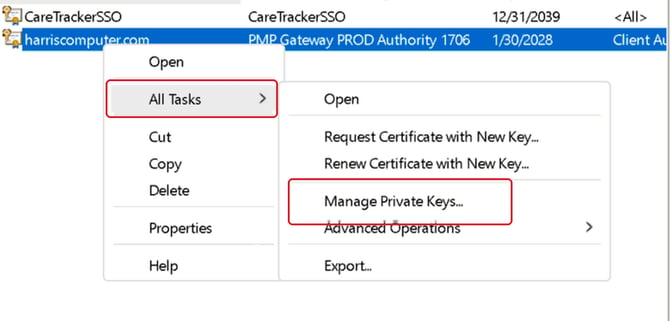
- Select the correct certificate. Find and select the certificate issued to harriscomputer.com.
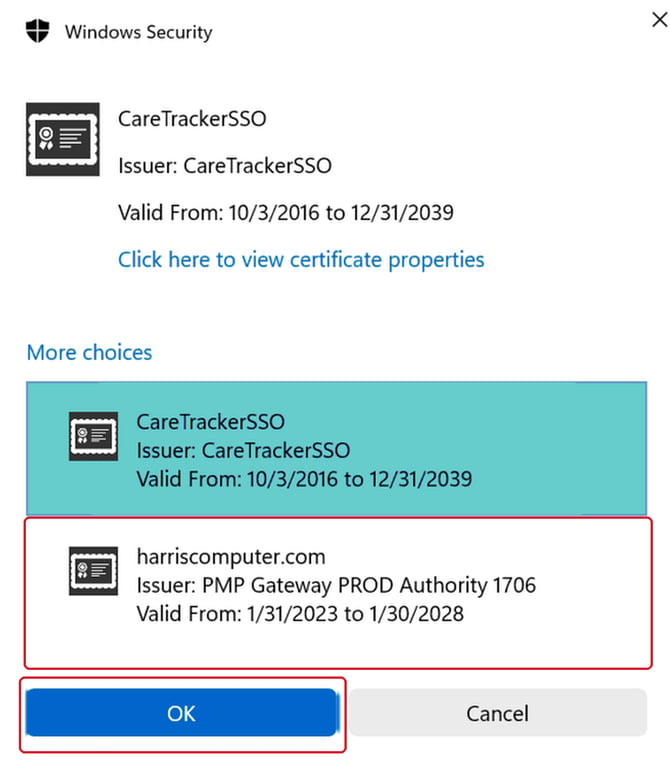
 If you see more than one certificate in the list, make sure you pick the one issued by PMP Gateway PROD Authority — not a CareTrackerSSO certificate.
 - Open the private key manager. Right-click the certificate, then choose All Tasks > Manage Private Keys.
- Check the permissions list. If Everyone and Network Service are not already listed, click Add...
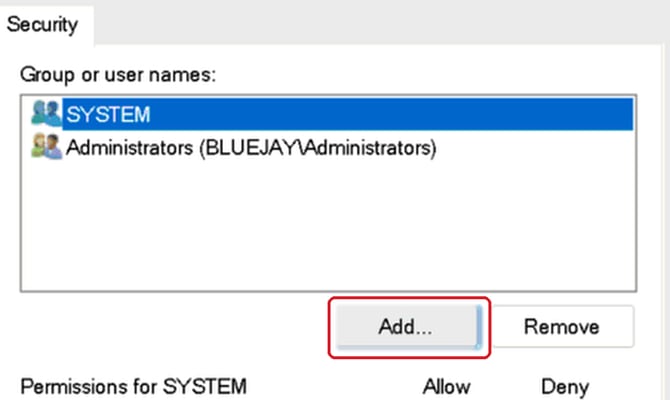
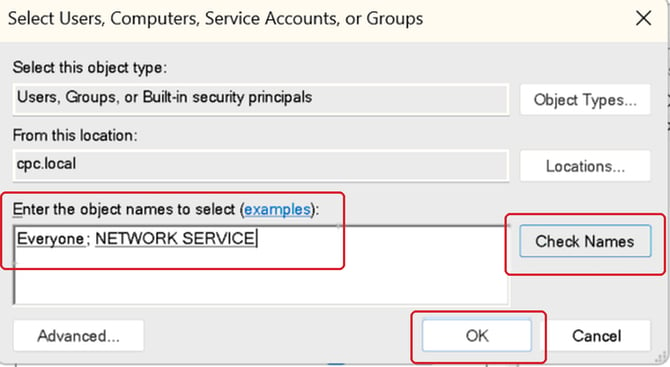
- Add the required accounts. Type
Everyone; Network Serviceinto the box and click Check Names. - Once the names are confirmed, click OK.
- Click Apply.
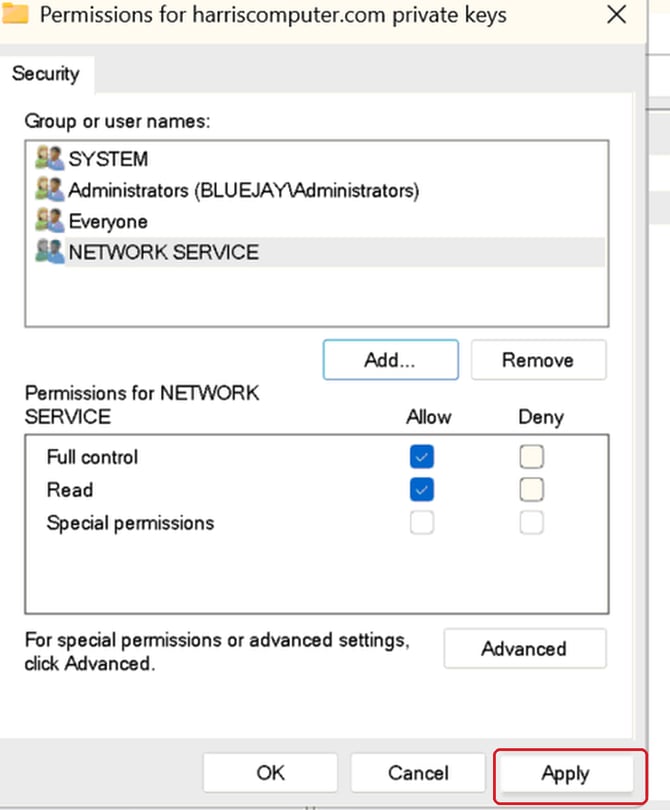
- Close MMC. Part 1 is complete.
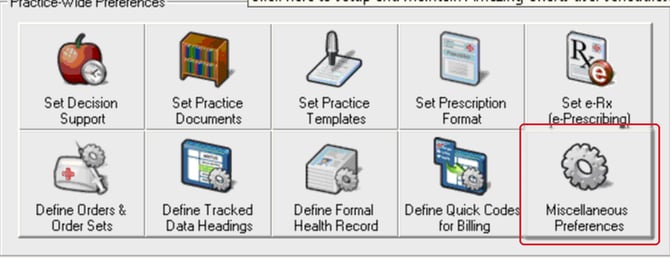
- Open Admin Options. In Amazing Charts, go to the Admin Options screen.
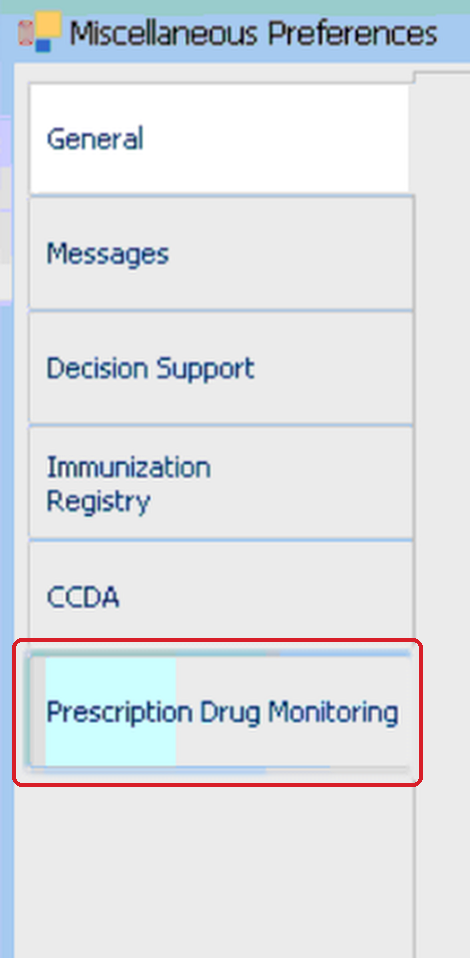
- Click Miscellaneous Preferences.
- Click Prescription Drug Monitoring.
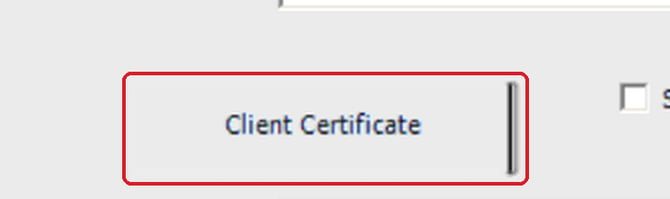
- Click Client Certificate.
- Click More Choices.
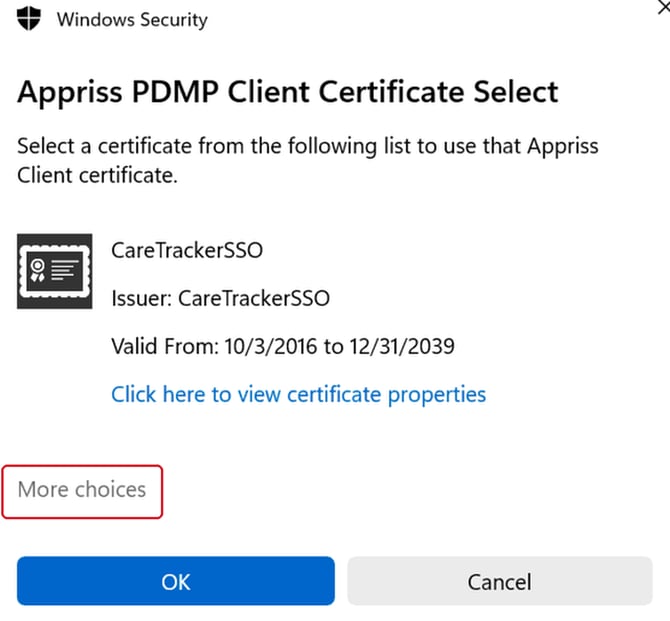 This window may open showing a CareTrackerSSO certificate by default. Click More choices to see the full list.
 - Select the certificate issued to harriscomputer.com (issuer: PMP Gateway PROD Authority), then click OK.
- Click Save Changes in the bottom right corner.
- Test it. Open a patient chart and confirm the PDMP lookup runs successfully.
Still having trouble?
If you're still seeing issues after completing these steps, reach out to Amazing Charts support at 866-382-5932, option 1, or email support@amazingcharts.com.