Launching the dashboard
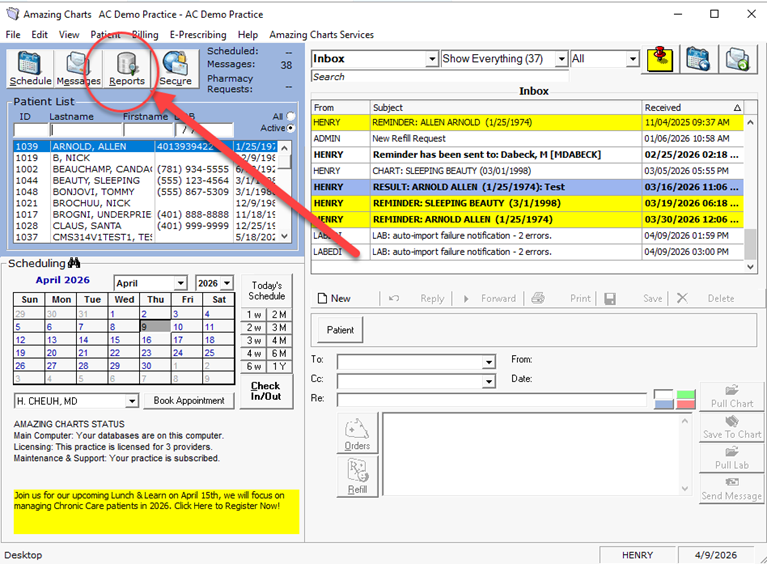
From the Main Screen of Amazing Charts, click “Reports”
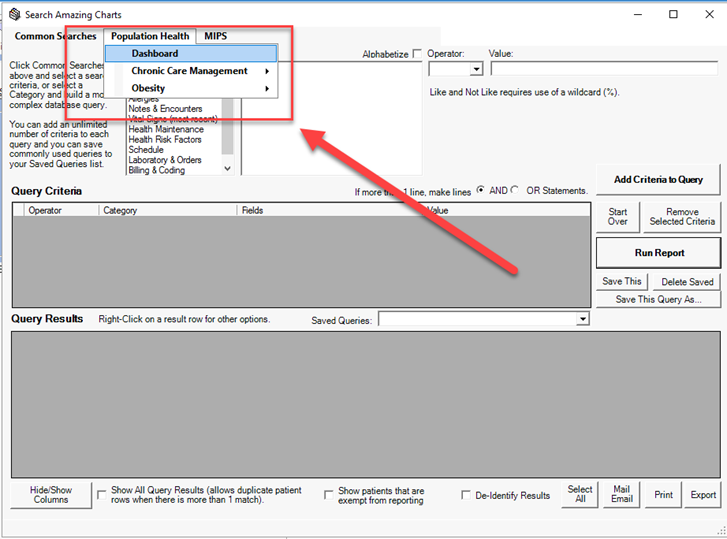
Select “Population Health” at the top and click “Dashboard”
Preparing the report
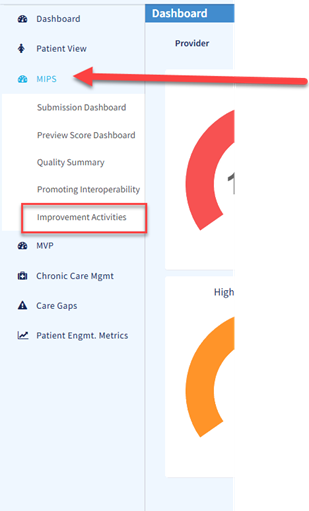
Select “MIPS” on the left side and Select “Improvement Activities” from the drop down menu
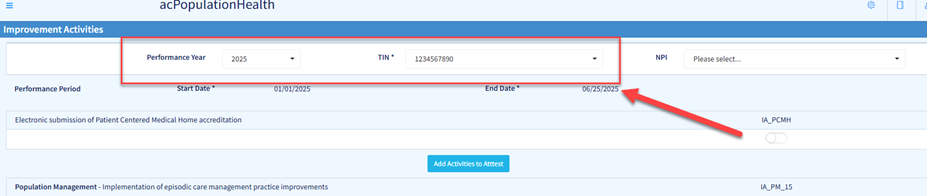
Select the Performance Year and TIN from the drop down menu at the top
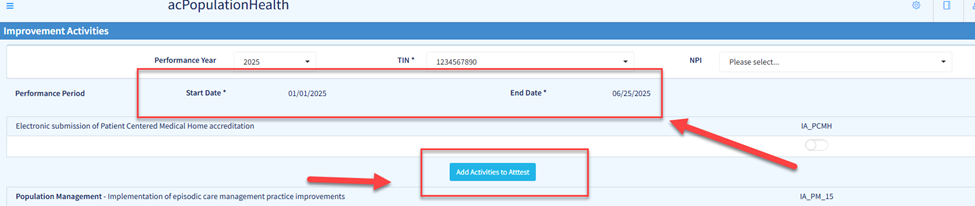
Select the Performance Period Start Date and End Date, and Click "Add Activities to Attest"
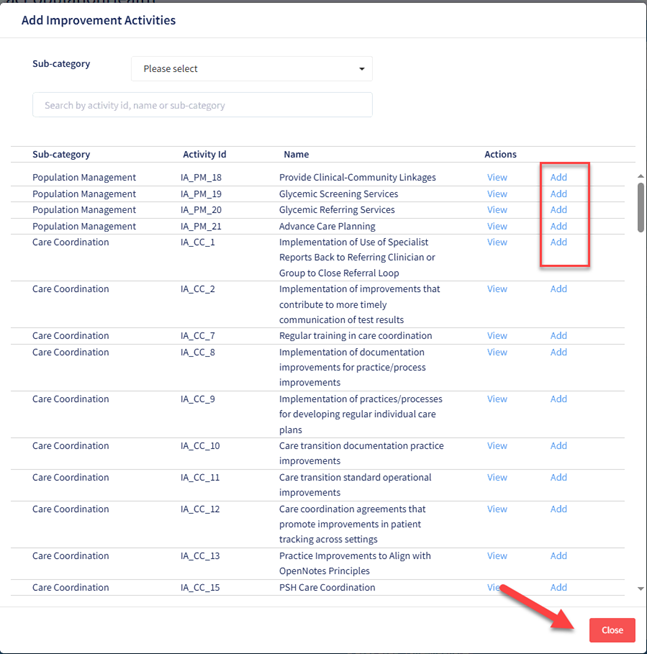
Scroll to find the activities you wish to attest to and select “Add”. Once you have added your activities, click “Close”
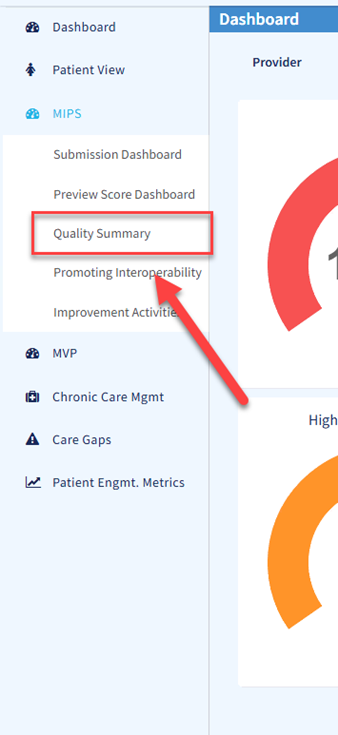
Select "Quality Summary" on the left side
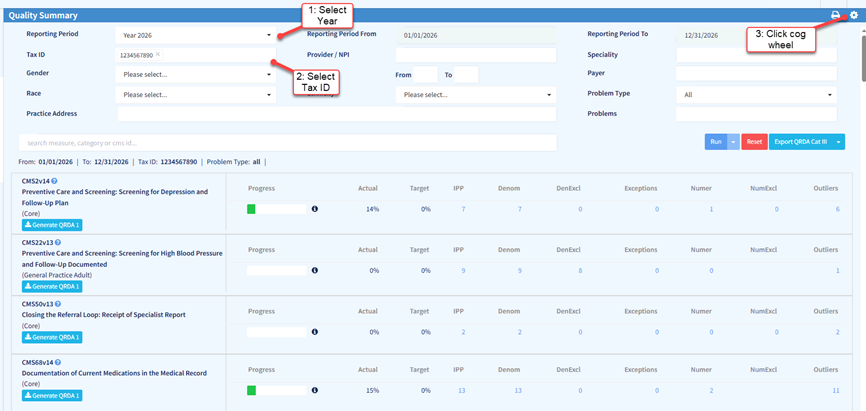
Select the Reporting Period at the top. Select Tax ID and then Click the white Cog Wheel at the top right
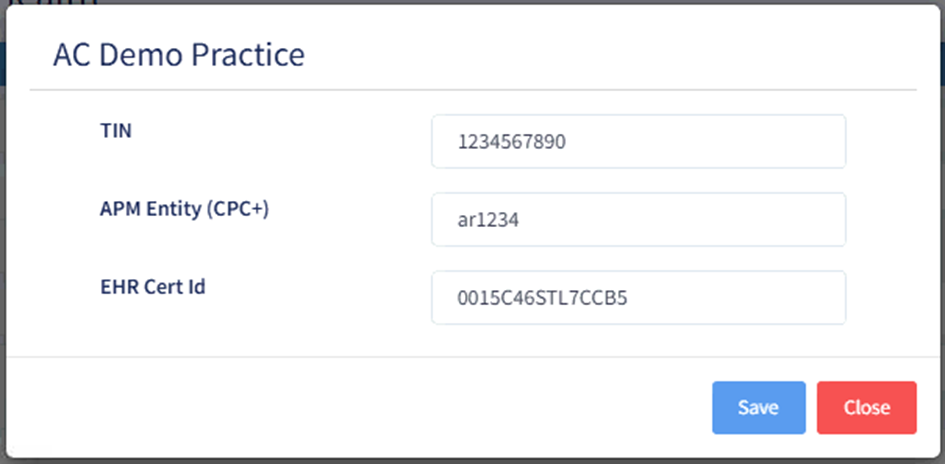
Make sure the EHR Cert ID is entered (go to www.amazingcharts.com for current certification information). Click “Save”
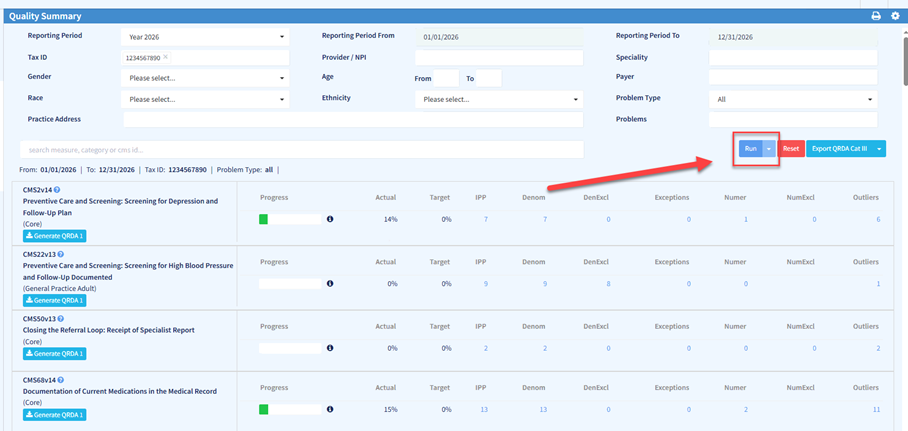
Click “Run”
Submitting Data
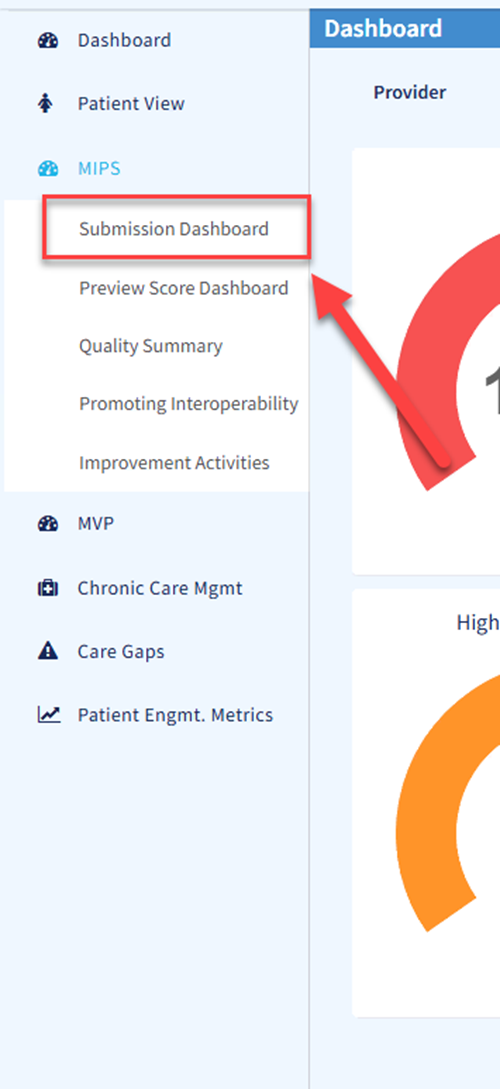
Click "Submission Dashboard" on the left
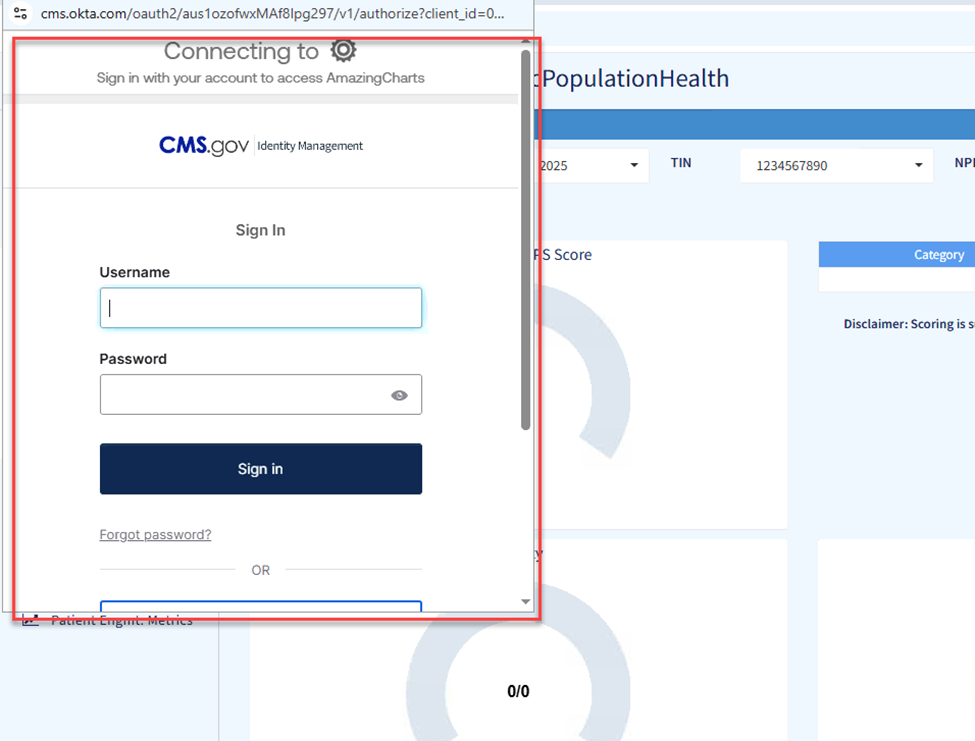
On the popup window, enter your QPP username and password and click sign in
Follow the onscreen directions to complete the login process
Note: QPP required passwords to be changed every 6 months You may need to change your password on this screen.
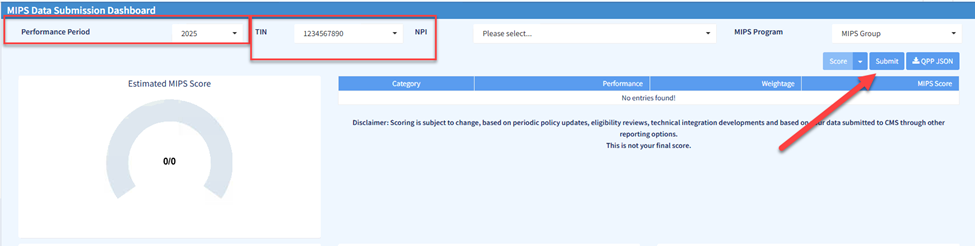
Once logged in, select the Reporting Period and TIN. Then click “Submit”
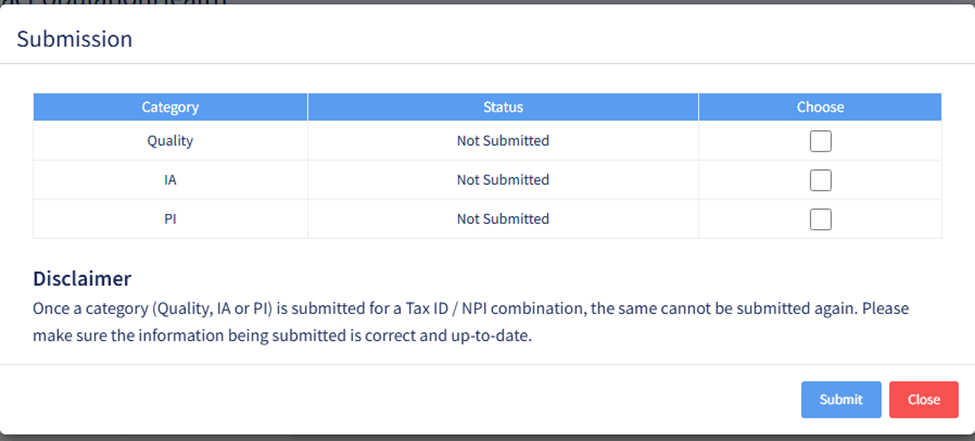
Check off the categories you wish to upload
Note: a Small Practice is automatically excluded from submitting PI
Click “Submit” when finished.
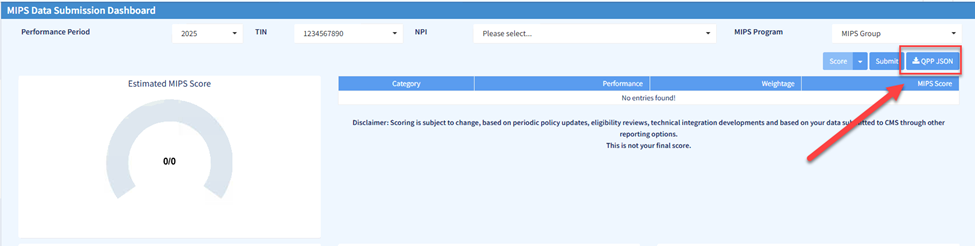
This will submit all the data for those categories to CMS. It is advisable that you download the QPP JSON file after submitting. To do this, click the "QPP JSON" button on the right of the submission dashboard.