
Amazing Charts lets you move all of a provider's scheduled appointments to another provider in a single step. This is useful when a provider leaves the practice, is out for an extended period, or when appointments need to be reassigned. Follow the steps below to transfer appointments from one provider to another.
Before you begin
This process requires access to Administrator Options. It transfers all scheduled appointments from the selected provider at once, so be sure you have selected the correct providers before completing the transfer.
Step-by-step instructions
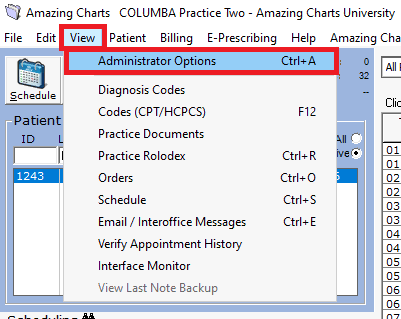
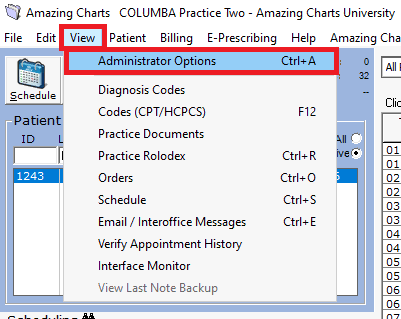
- Open Administrator Options. (From the top menu, click View and select Administrator Options (or press Ctrl + A).
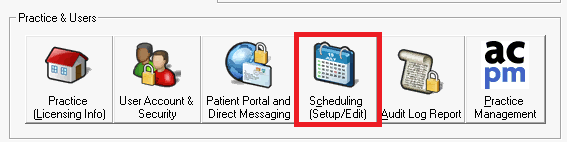
- Open Scheduling settings.
Amazing Charts lets you move all of a provider's scheduled appointments to another provider in a single step. This is useful when a provider leaves the practice, is out for an extended period, or when appointments need to be reassigned. Follow the steps below to transfer appointments from one provider to another.
Before you begin
This process requires access to Administrator Options. It transfers all scheduled appointments from the selected provider at once, so be sure you have selected the correct providers before completing the transfer.
Step-by-step instructions- Open Administrator Options. (From the top menu, click View and select Administrator Options (or press Ctrl + A).
- Open Scheduling settings. (In the Practice & Users section, click Scheduling (Setup/Edit).
- Select the Transfer Appointments tab. (In the Scheduling window, click the Transfer Appointments tab.)

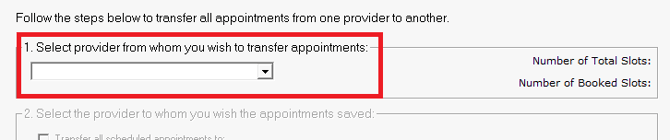
- Choose the provider to transfer appointments FROM. (Under 1. Select provider from whom you wish to transfer appointments, click the dropdown and select the provider whose appointments you want to move.)
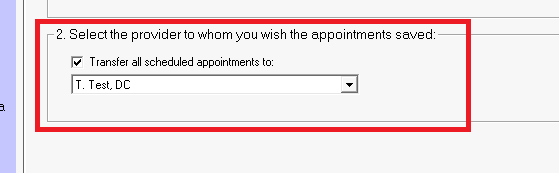
- Choose the provider to transfer appointments TO. (Under 2. Select the provider to whom you wish the appointments saved, check the Transfer all scheduled appointments to: box, then select the receiving provider from the dropdown.)
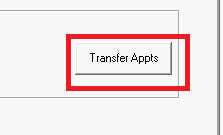
- Complete the transfer.Click Transfer Appts to move the appointments to the selected provider.
If you are still seeing issues after completing these steps, please contact our support team:
- Phone: 866-382-5932, option 1
- Email: support@amazingcharts.com
- Open Administrator Options. (From the top menu, click View and select Administrator Options (or press Ctrl + A).