
Before starting the upgrade process, the following conditions must be met to ensure the upgrade is completed without any issues. If any of these items have not been met, do not proceed with the upgrade until they have been completed. Failure to do so may result in data corruption or even data loss.
Read this document in its entirety before starting the upgrade process.
Pre-requisite Checks
- The main Amazing Charts computer must meet our minimum specifications, which are detailed here: https://amazingcharts.com/system-requirements/
- All Windows updates have been installed and there are no pending updates waiting to be installed.
- The main Amazing Charts computer’s C: drive has at least 6 GB of free space
- You have SQL 2016 Express SP3 or higher installed
- You are running 64-bit SQL 2016 Express
- 3rd Party anti-virus software has been disabled (it may be enabled again after the upgrade)
- All users have saved their work in Amazing Charts and closed out of the program; do not attempt to access the program until the upgrade has been completed
- A backup of the Amazing Charts database has been made and is accessible if needed
- If the main computer is a laptop, ensure that the charging cord has been connected
*If you are running Amazing Charts on 32-bit SQL 2016 Express, SQL 2016 Standard or if your main Amazing Charts computer is a domain controller, DO NOT ATTEMPT THE UPGRADE PROCESS LISTED BELOW. The upgrade process will not work and will require an appointment with tech support to complete the upgrade. *
Creating a database backup
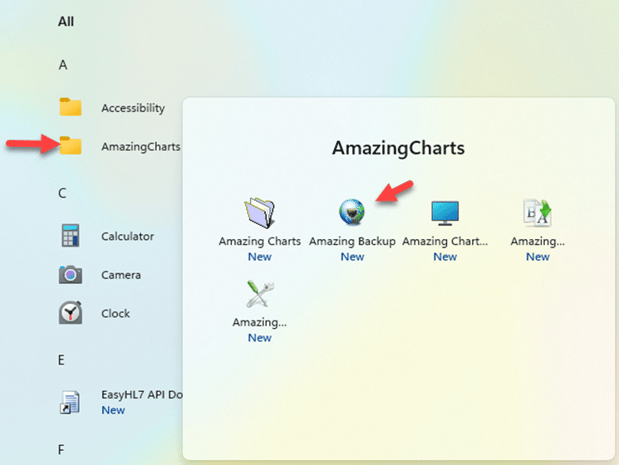
- On the main Amazing Charts computer, click on the Windows start button and scroll until you see the Amazing Charts folder. Open the folder and select the “Amazing Backup” program.
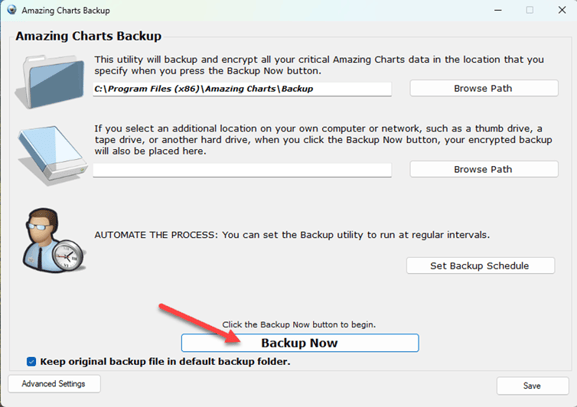
- Click on “Backup Now” to start the backup.
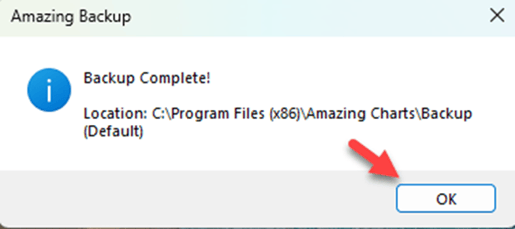
- Once the backup is complete, you will get a confirmation box saying the backup is complete. Click “OK” to exit the backup utility.
BEFORE MOVING FORWARD, YOU MUST ENSURE ALL OF THE PRE-REQUISITE CHECKS LISTED AT THE BEGINNING OF THIS DOCUMENT ARE MET
Upgrading SQL
- On the main Amazing Charts computer, download the SQL 2022 installer from this link: Download Installer
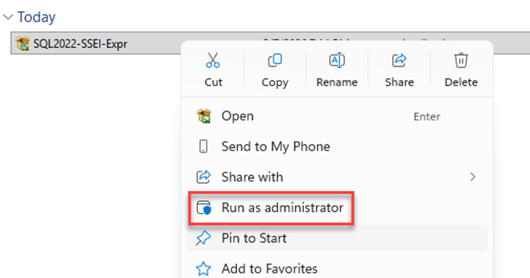
- Once the download is complete, right click on the installer and select “Run as administrator.”
- Select “Custom.”
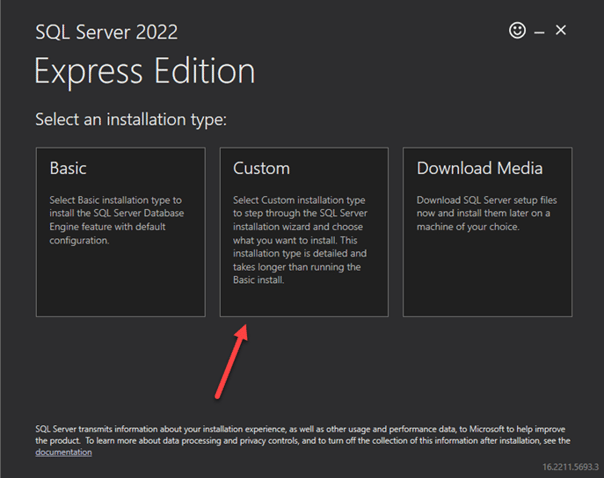
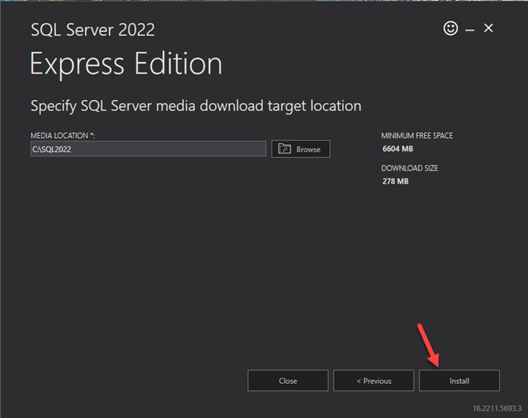
- Leave the download directory as the default and click “Install”
*This will start the download of the installation media. It is approximately 2 GB in size, so if needed, a different download location may be selected. *
-
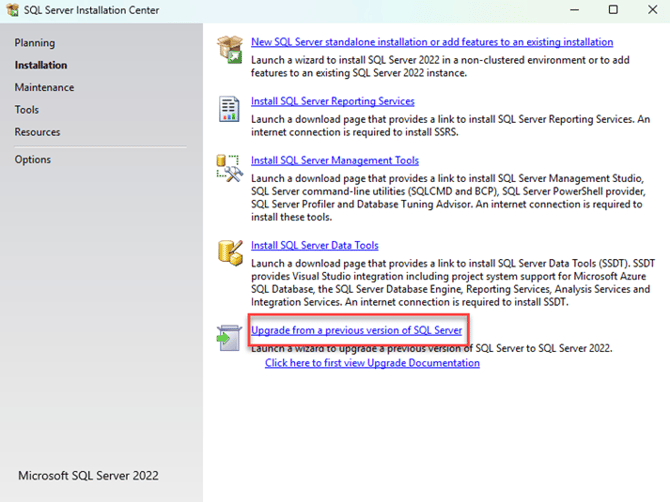
Once the download is complete, the SQL Server Installation Center will open. Click the bottom option of “Upgrade from a previous version of SQL Server.”
-
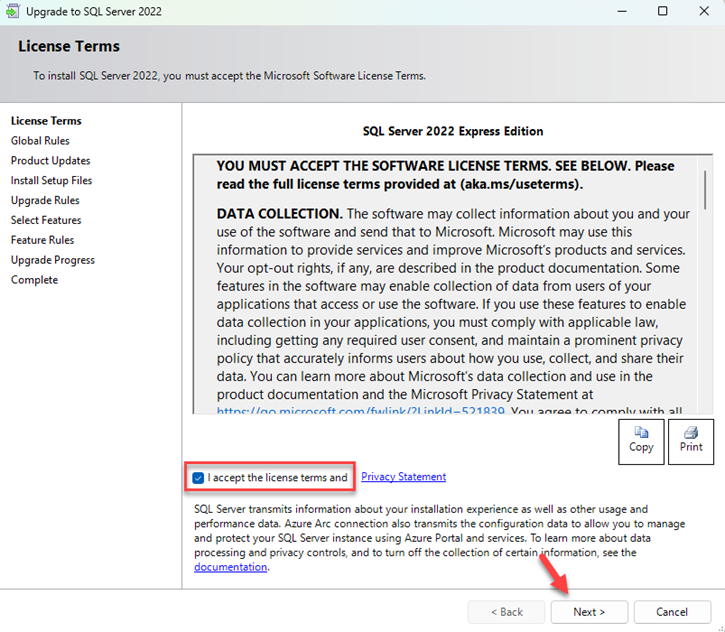
Check the box to accept the Microsoft license terms and click “Next”
-
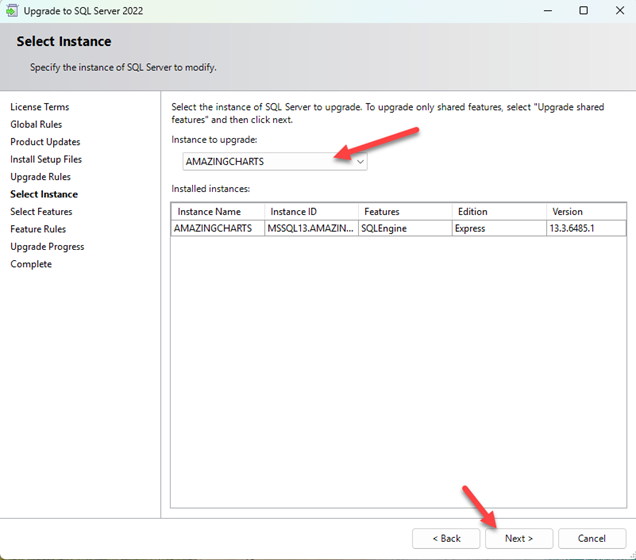
In the dropdown, select the instance named “AMAZINGCHARTS”. click “Next.”
-
The installer will now run and start the upgrade process.
-
Once complete, the installer will list the outcome of the upgrade. Make sure all options are listed with a green checkmark and click “Close.” You may now close the SQL installation center.
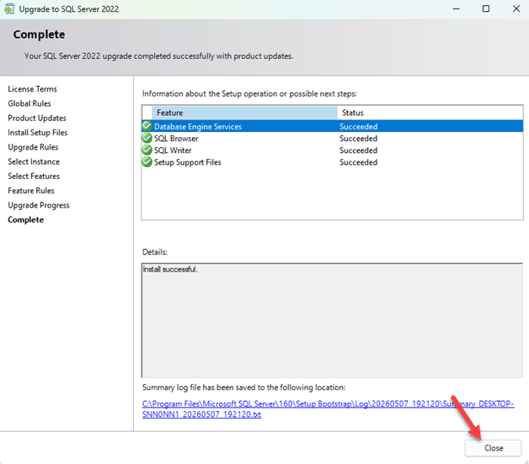
*If any of the items listed have a red X or “Failed” status or if any error messages are displayed during the upgrade process, please contact our support team at (866)-382-5932 option 1 for further assistance.*
The SQL 2016 upgrade is now complete, and you may now start using Amazing Charts as normal.