
This guide walks you through fixing the "Windows cannot access" error that appears when Citrix hasn't been given permission to reach your local C: drive.
You'll see this message if you click Local Disk (C:) from within your Citrix session:
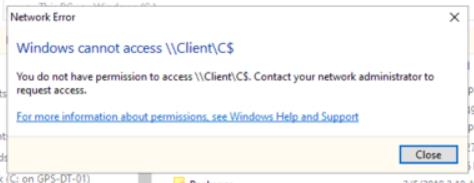
The error you'll see if Citrix doesn't have permission to access your local drive.
Follow the steps below to grant that permission.
- Open the Citrix icon
Right-click the Citrix icon in your system tray, near the clock in the bottom-right corner of your screen.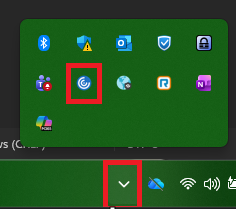
The Citrix icon highlighted in the Windows system tray. - Open Connection Center
Select Connection Center from the menu that appears.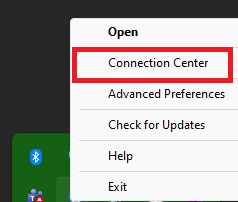
The right-click menu with Connection Center highlighted. - Select your session
In the Connections list, click your active session to select it.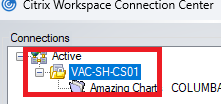
The Connection Center window with the active session highlighted. - Open Preferences
Click Preferences, located to the right of the connection list.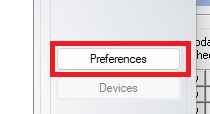
The Preferences button highlighted in the Connection Center window. - Allow read and write access
On the File Access tab, select Read and write, then click Apply.Note: You may need to restart your Citrix session for the change to take effect.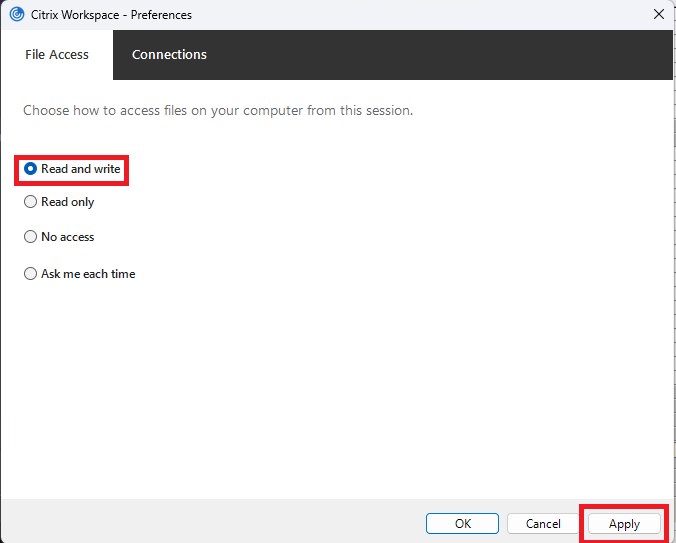 The Preferences window with Read and write selected and Apply highlighted.
Need more help?
If you're still having trouble after completing these steps, contact Amazing Charts Support:
Phone: 866-382-5932, option 1
Email: techsupport@amazingcharts.com